Originaldokument
GPT Image 2 · en
{
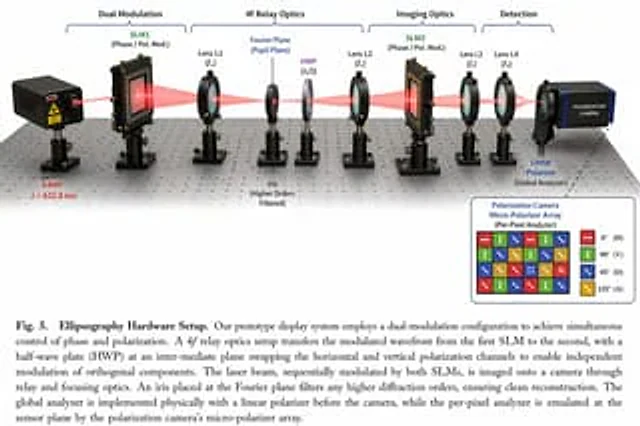
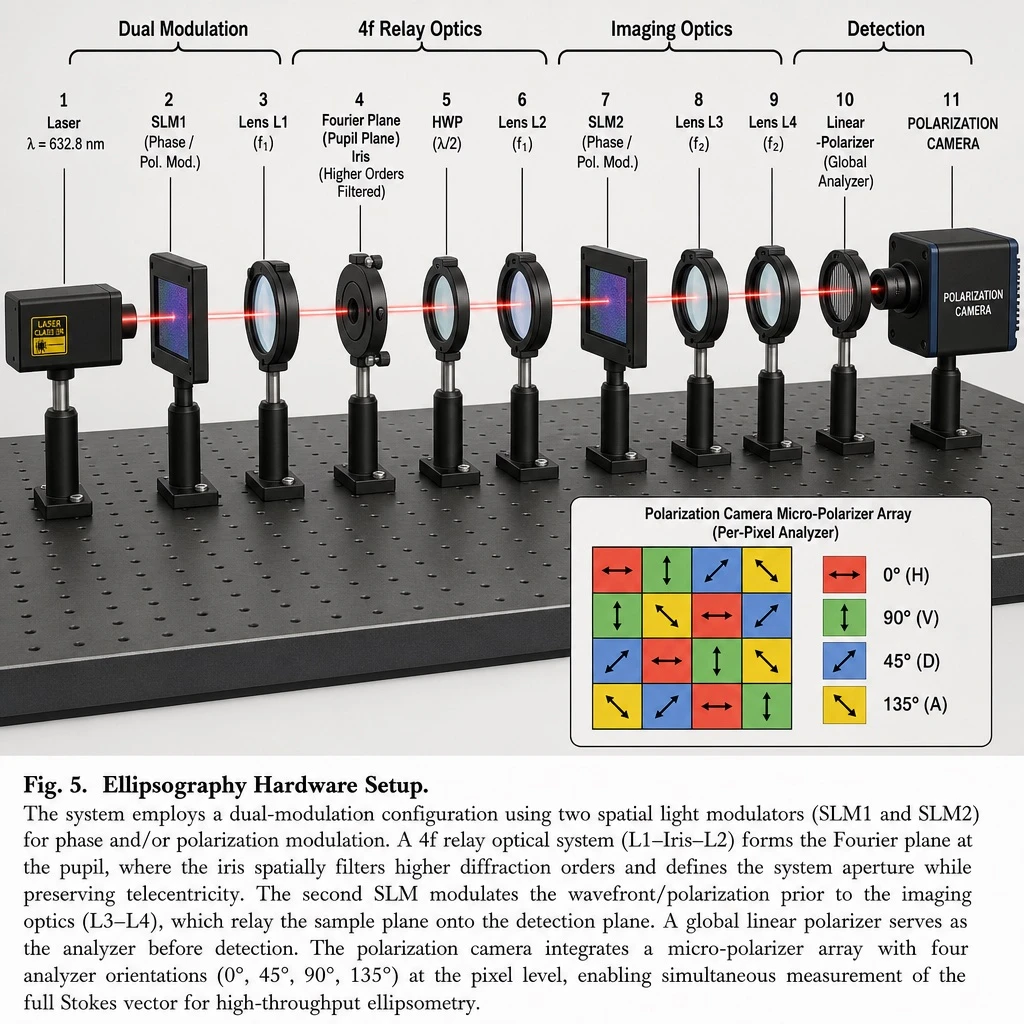
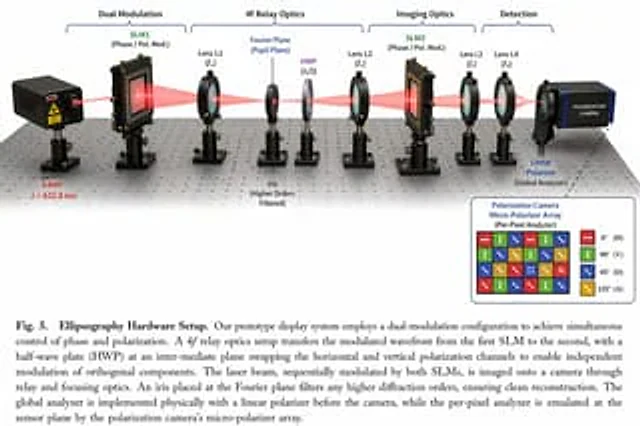
  "type": "Scientific Optics Setup Diagram",
  "main_setup": {
    "base": "Optical breadboard with mounting hole array",
    "beam": "A red laser beam passes horizontally through all components.",
    "top_grouping_brackets": [
      "{argument name=\"first component group\" default=\"Dual modulation\"}",
      "4f relay optical system",
      "Imaging Optical System",
      "Detection"
    ],
    "components_left_to_right": [
      {
        "name": "laser",
        "label": "{argument name=\"laser wavelength\" default=\"λ = 632.8 nm\"}",
        "appearance": "black rectangular box"
      },
      {
        "name": "SLM1",
        "label": "(Phase/Polarization Modulation)",
        "appearance": "Black square equipment mounted on a support column"
      },
      {
        "name": "Lens L1",
        "label": "(f1)",
        "appearance": "Lens in black circular bracket"
      },
      {
        "name": "Aperture",
        "label": "Fourier plane (pupil plane) / (higher-order filtering)",
        "appearance": "Black ring-shaped bracket with dotted line at the top"
      },
      {
        "name": "HWP",
        "label": "(λ/2)",
        "appearance": "Optical elements with purple hues in a black ring-shaped bracket."
      },
      {
        "name": "Lens L2",
        "label": "(f1)",
        "appearance": "Lens in black circular bracket"
      },
      {
        "name": "SLM2",
        "label": "(Phase/Polarization Modulation)",
        "appearance": "Black square equipment mounted on a support column"
      },
      {
        "name": "Lens L3",
        "label": "(f2)",
        "appearance": "Lens in black circular bracket"
      },
      {
        "name": "Lens L4",
        "label": "(f2)",
        "appearance": "Lens in black circular bracket"
      },
      {
        "name": "Linear polarizer",
        "label": "(Global Analyzer)",
        "appearance": "Lens in black circular bracket"
      },
      {
        "name": "polarization camera",
        "label": "polarization camera",
        "appearance": "Blue and black box camera"
      }
    ]
  },
  "inset_diagram": {
    "position": "Bottom right corner, dashed border",
    "title": "{argument name=\"inset title\" default=\"Polarization camera micro polarizer array\"}(Pixel-by-pixel analyzer)",
    "visuals": "4x4 colored square array with white directional arrows",
    "legend_count": 4,
    "legend_labels": [
      "Red right arrow 0° (H)",
      "Green up arrow at 90° (V)",
      "Blue diagonal arrow at 45° (D)",
      "Yellow diagonal arrow 135° (A)"
    ]
  },
  "bottom_caption": {
    "figure_number": "Figure 5.",
    "title": "{argument name=\"setup title\" default=\"Hardware setup for elliptic polarization measurement.\"}",
    "description": "{argument name=\"figure caption\" default=\"Our prototype display system employs a dual modulation configuration to achieve synchronous control of phase and polarization. A 4f relay optics system transmits the modulated wavefront…\"}"
  }
}
Verwendung
- Den vollständigen Original-Prompt einschließlich Parametern kopieren.
- Motiv, Text und Komposition an die eigenen Anforderungen anpassen.
- Ein kompatibles externes Werkzeug nutzen; Zugangsbedingungen und Ergebnis prüfen.
Vor dem Start
- Prüfen, ob ein Referenzbild nötig ist. Kompatibilität belegt nicht das tatsächlich verwendete Modell.
- Namen, Zahlen und Bildtexte prüfen; Modellversionen können andere Ergebnisse liefern.