Document original
GPT Image 2.5 · en
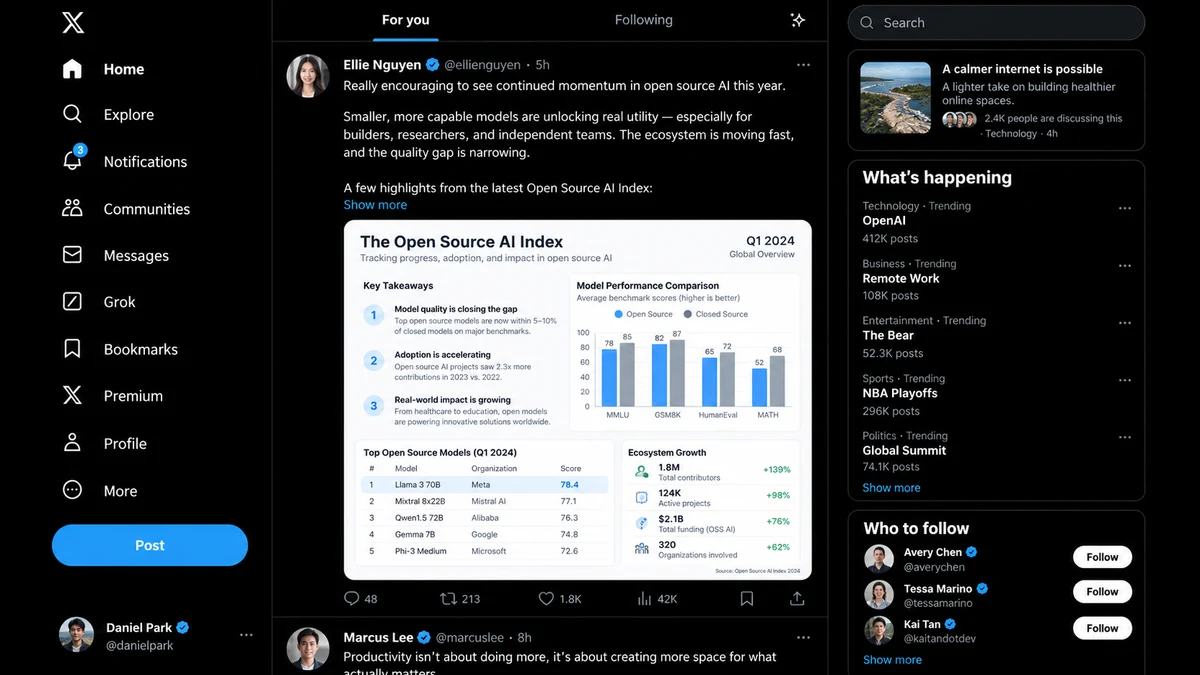
@创建图片 Create a highly realistic desktop screenshot of the X / Twitter web app in dark mode.

The goal is to accurately reproduce the component system, layout, spacing, typography hierarchy, information density, and visual structure of the modern X desktop interface.

The actual post content, usernames, trending topics, engagement numbers, recommended accounts, timestamps, and article topics may be randomly generated, as long as they feel realistic, internally consistent, and appropriate for a real social-media feed.

Do NOT focus on reproducing any specific real-world post.
Prioritize UI fidelity and layout accuracy.

CANVAS
16:9 landscape desktop screenshot.
Approximately 1600×900 or similar widescreen desktop viewport.
No browser chrome.
No device frame.
No perspective.
Flat front-facing screenshot.

OVERALL LAYOUT
Use the classic three-column X desktop layout:

1. fixed navigation sidebar on the left
2. main timeline/feed in the center
3. discovery / trends sidebar on the right

Use thin vertical separator lines between columns.

The overall background is pure black or nearly black.

LEFT SIDEBAR
Create a vertically stacked navigation system.

At the top:
X logo.

Below it, large navigation items with simple monochrome icons and text labels.

Include components similar to:
Home
Explore
Notifications
Follow / Communities
Chat / Messages
AI / Grok
Bookmarks / History
Premium
Profile
More

One item should appear selected using brighter white text and slightly stronger visual weight.

Navigation items should have:
large icon on the left
label aligned consistently
generous vertical spacing
simple flat interaction design

Add a large pill-shaped primary action button near the bottom.

At the bottom-left, show a compact account profile component:
circular avatar
display name
@username
three-dot menu

CENTER FEED
Create a top tab/navigation bar.

Include two feed tabs such as:
“For you”
“Following”

The selected tab should use bright white bold text and a short blue underline indicator.

Add a small action icon aligned to the far right.

Below the tab bar, show a realistic timeline post.

POST COMPONENT
The post should contain:

circular avatar
display name
optional verified badge
@username
timestamp
three-dot overflow menu

Below that, include several lines of realistic social-media text.

The text may discuss a random plausible topic such as:
AI
technology
software
startups
design
business
science
culture
productivity
current internet discussions

Generate natural-looking but fictional content.

Use realistic line wrapping, spacing, paragraph breaks, and truncation.

Optionally add a blue “Show more” link.

EMBEDDED MEDIA
Below the post text, include a large embedded image card.

The image can be:
a research infographic
a chart
a technology report
a news graphic
a product screenshot
a comparison table
an editorial card
a dashboard screenshot

The embedded image should have rounded corners and occupy most of the post width.

Its internal content may be randomly generated, but it should look professionally designed and information-rich.

For example:
clean white or light-gray report background
small headings
data tables
two-column information layout
bullet lists
labels
subtle separators
one highlighted row or annotation
dense but readable editorial typography

The specific words and numbers do not matter.
Prioritize believable visual structure.

Add realistic interaction metrics beneath or around the post:
reply icon + number
repost icon + number
like icon + number
views
bookmark
share

Generate random realistic values such as:
48
213
1.8K
42K
etc.

RIGHT SIDEBAR
At the top, create a rounded search field with:
magnifying glass icon
placeholder text such as “Search”

Below it, create several stacked rounded cards.

CARD 1
A compact current-topic / article / discussion module.

Include:
headline
small avatar cluster or thumbnail
timestamp / category / post count metadata

Content can be random.

CARD 2
A “What’s happening” / trending module.

Use a large bold section heading.

Create 4–5 trending rows.

Each trending item should contain:
small muted category label
bold topic/title
optional post count
three-dot menu aligned right

Generate random but plausible topics.
Do not repeat exact real-world trends.

Add a blue “Show more” action at the bottom.

CARD 3
A “Who to follow” module.

Create approximately 3 user recommendation rows.

Each row contains:
circular avatar
bold display name
optional blue verification badge
muted @handle
white pill-shaped “Follow” button aligned right

Generate fictional user identities.

VISUAL SYSTEM
Closely match the visual language of X dark mode:

pure black background
near-white primary text
medium gray secondary text
thin dark-gray borders
bright blue selected-state and link accents
white pill buttons
minimal flat iconography

Use a clean sans-serif font similar to:
SF Pro
Helvetica Neue
Arial
Inter

Typography should have strong hierarchy:
large bold section titles
medium-weight account names
regular post text
small muted metadata

Maintain realistic X-like spacing:
consistent 16–20 px padding
clean baseline alignment
accurate line-height
balanced column proportions
subtle separators

RIGHT COLUMN CARDS
Use large rounded rectangles with thin dark-gray borders.
Avoid shadows or glassmorphism.

UI QUALITY
The result should feel like an actual production social-media website, not a concept design.

Prioritize:
pixel-accurate spacing
consistent component sizing
clean icon alignment
realistic content density
sharp typography
proper text wrapping
natural UI imperfections
authentic screenshot composition

Content can be randomized.
Component architecture and layout must remain highly consistent.

No artistic reinterpretation.
No dramatic lighting.
No gradients except extremely subtle interface variations.
No 3D.
No glassmorphism.
No mockup presentation frame.
No floating cards outside the UI.
No decorative background.

The final image should look indistinguishable from a genuine desktop screenshot of a modern X-style social media feed.
Mode d’emploi
- Copiez le prompt original complet, paramètres compris.
- Adaptez le sujet, le texte et la composition à vos besoins.
- Utilisez un outil externe compatible ; vérifiez l’accès et le résultat.
Avant de commencer
- Vérifiez si une image de référence est nécessaire. La compatibilité ne prouve pas le modèle utilisé pour cet exemple.
- Vérifiez noms, chiffres et textes ; les versions du modèle peuvent produire des résultats différents.