Document original
GPT Image 2 · en
Scene:
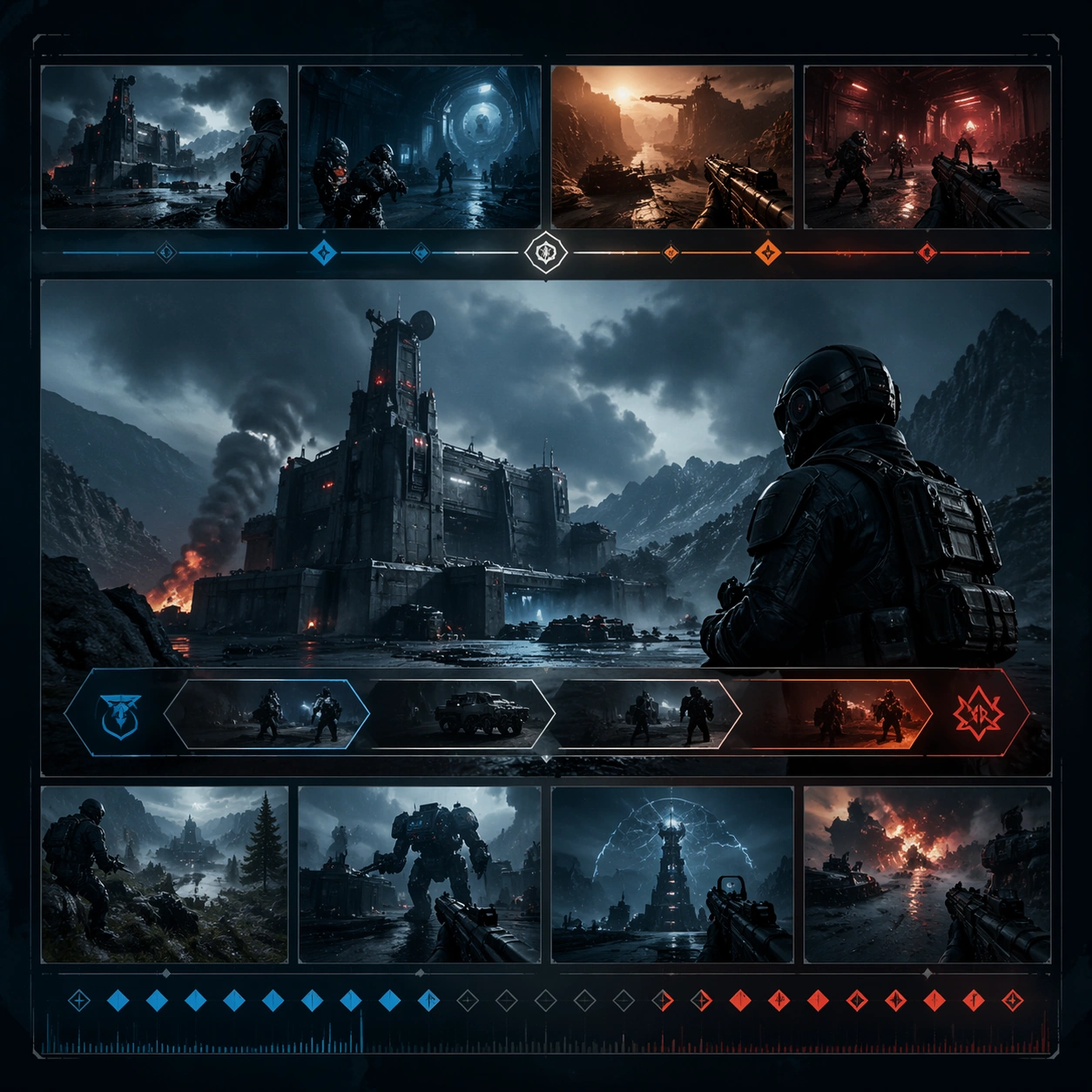
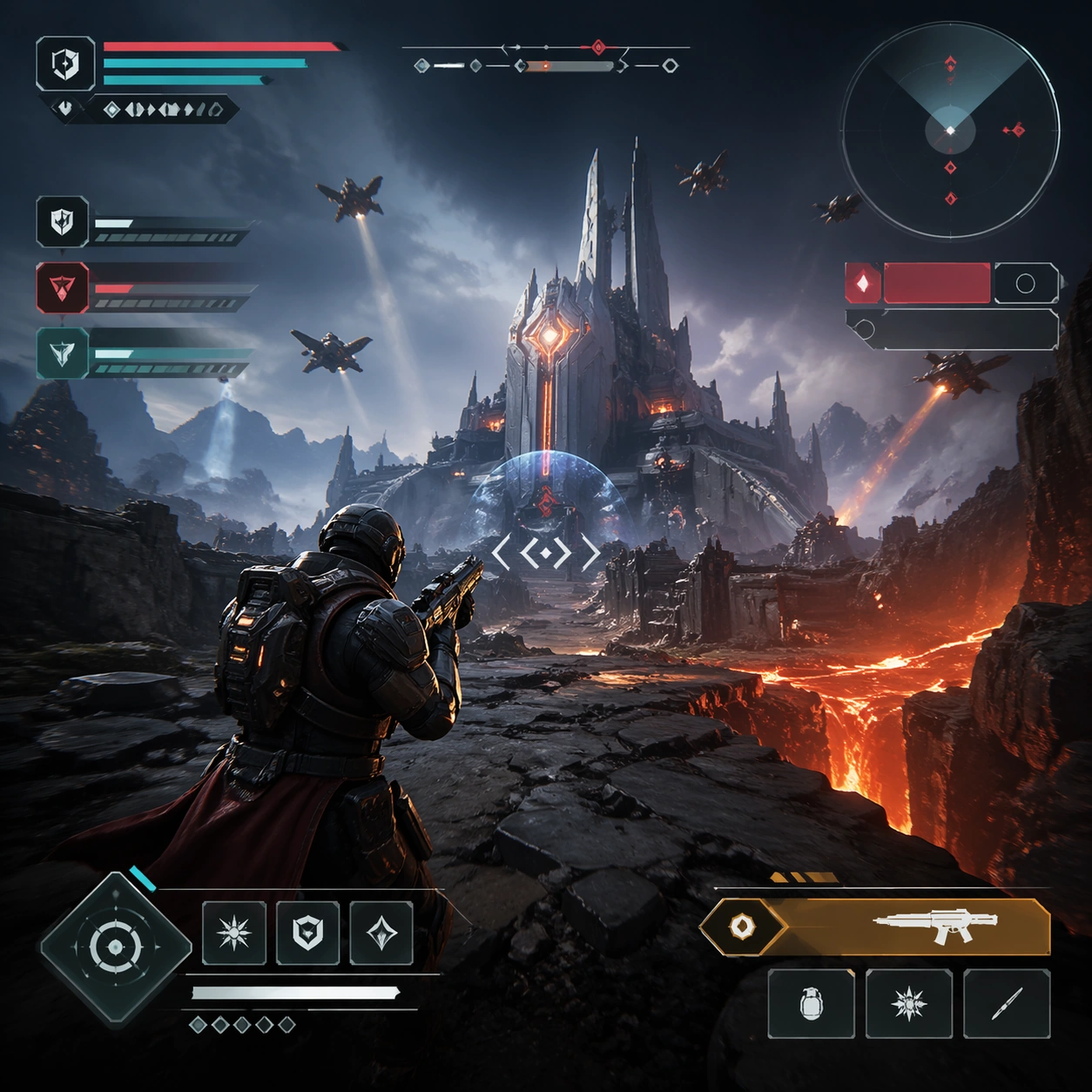
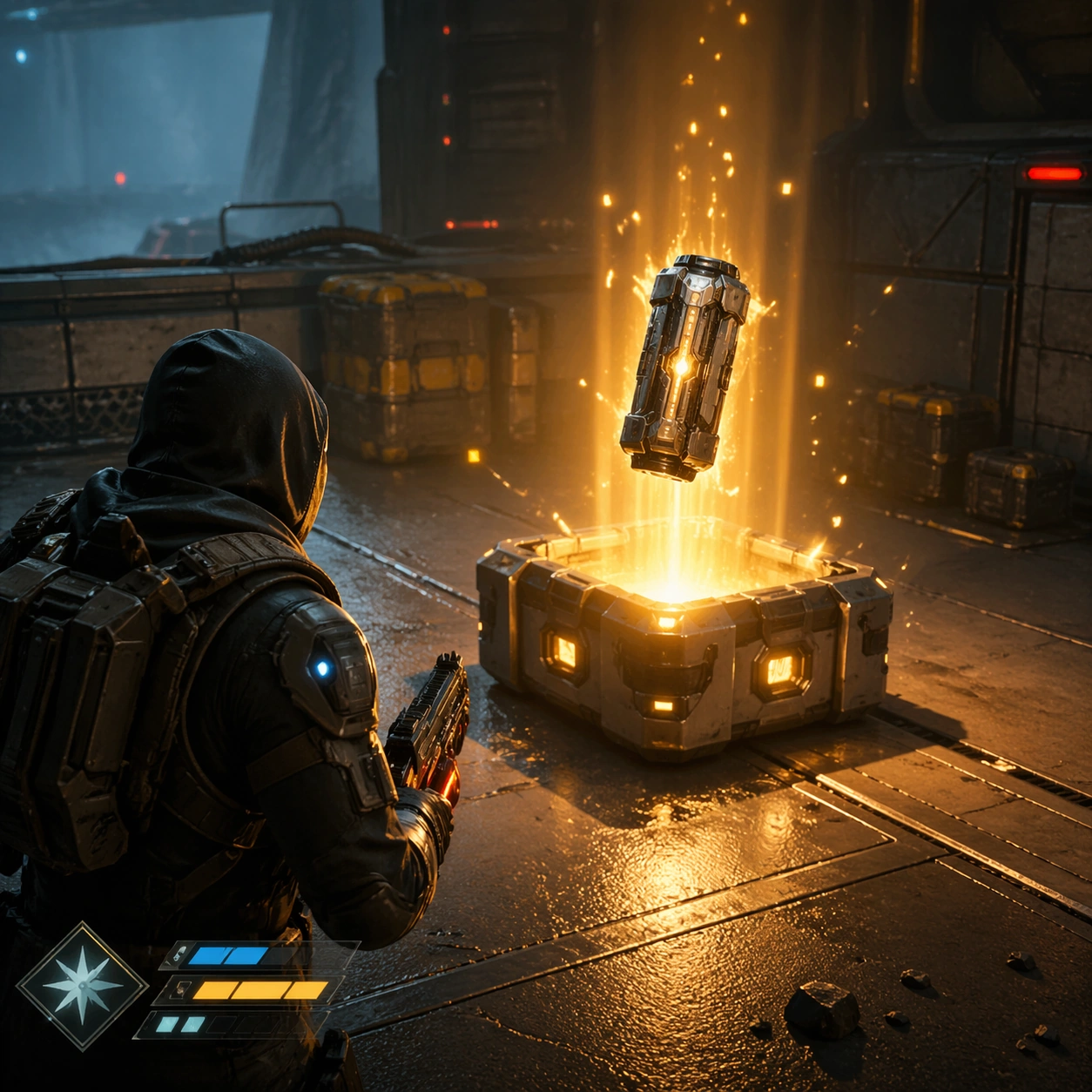
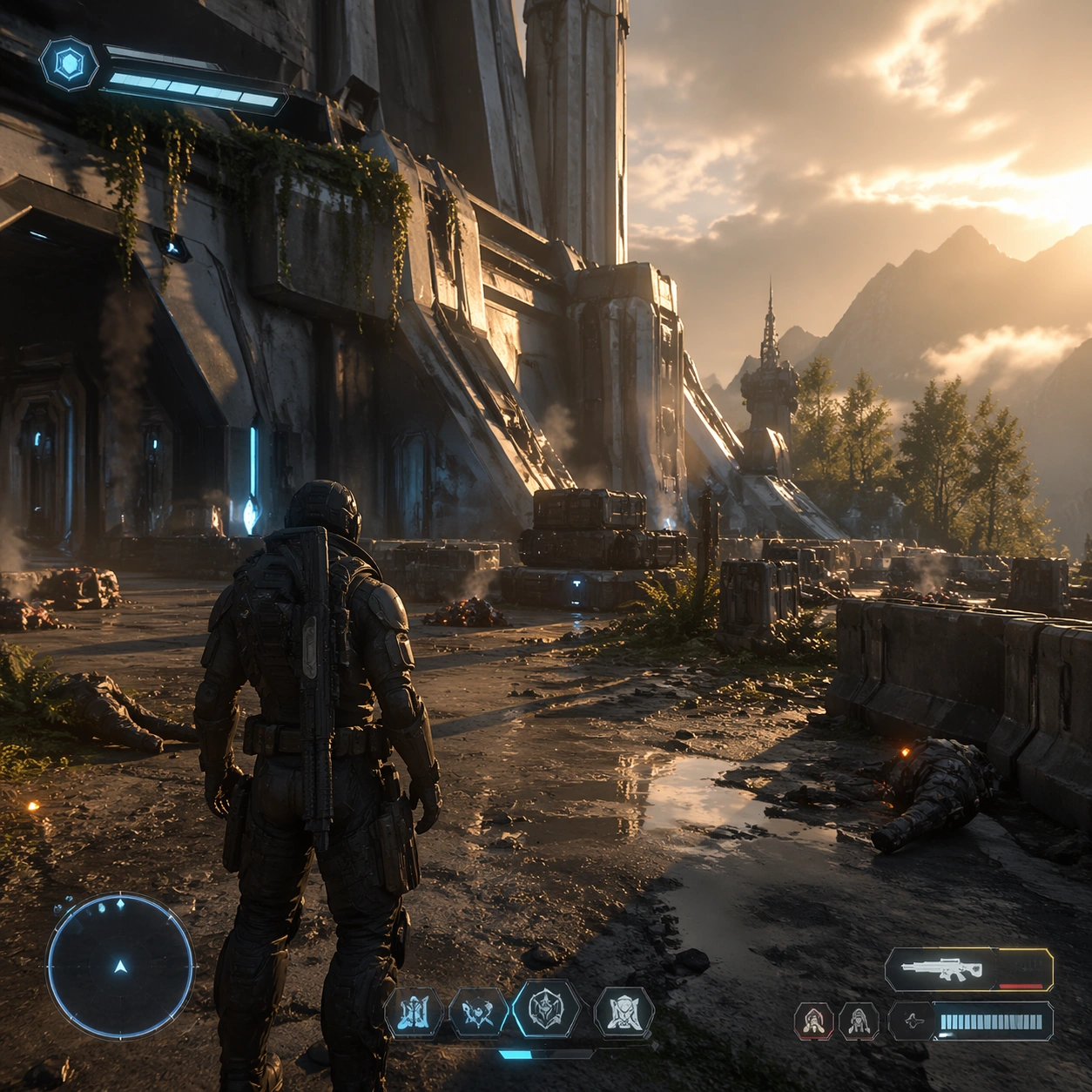
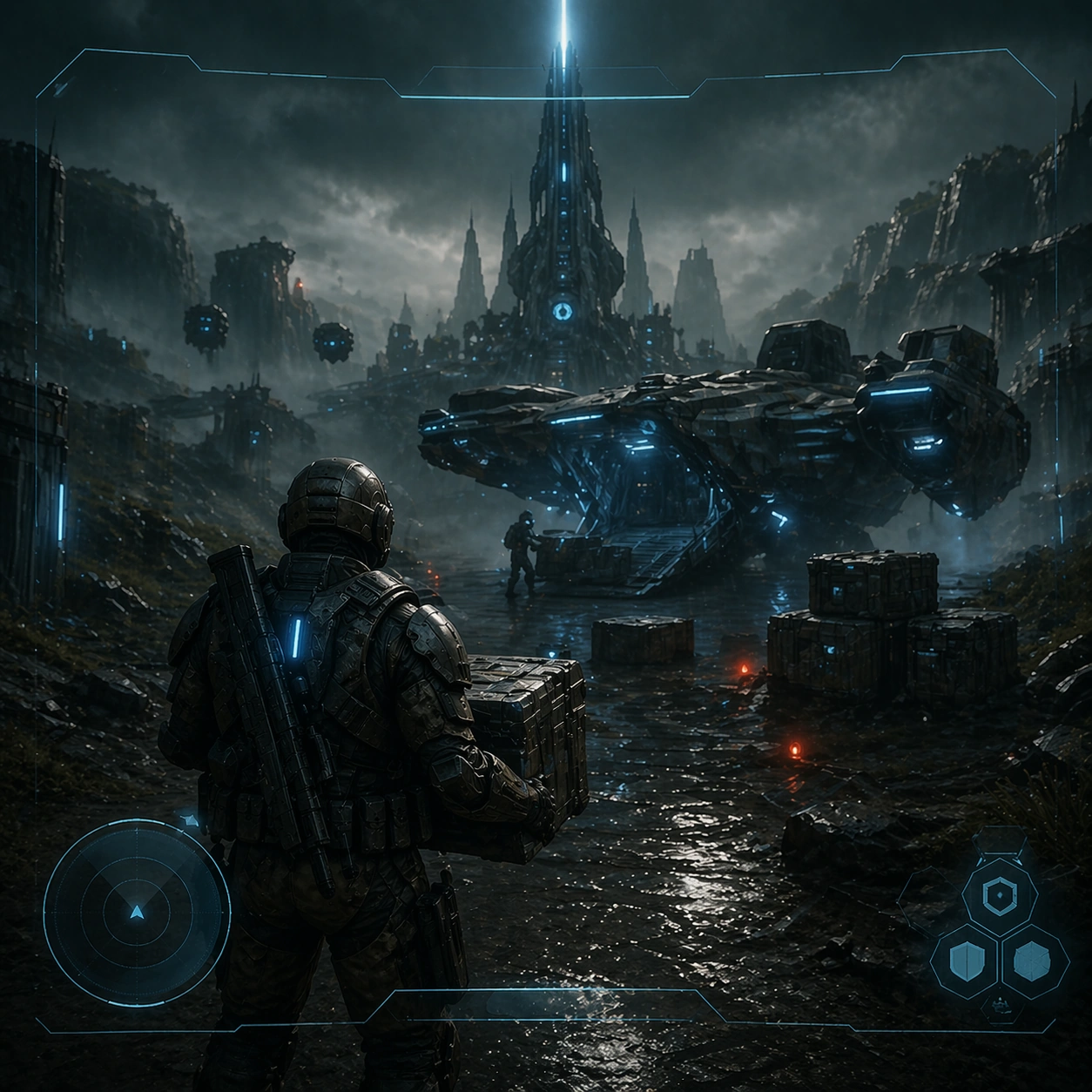
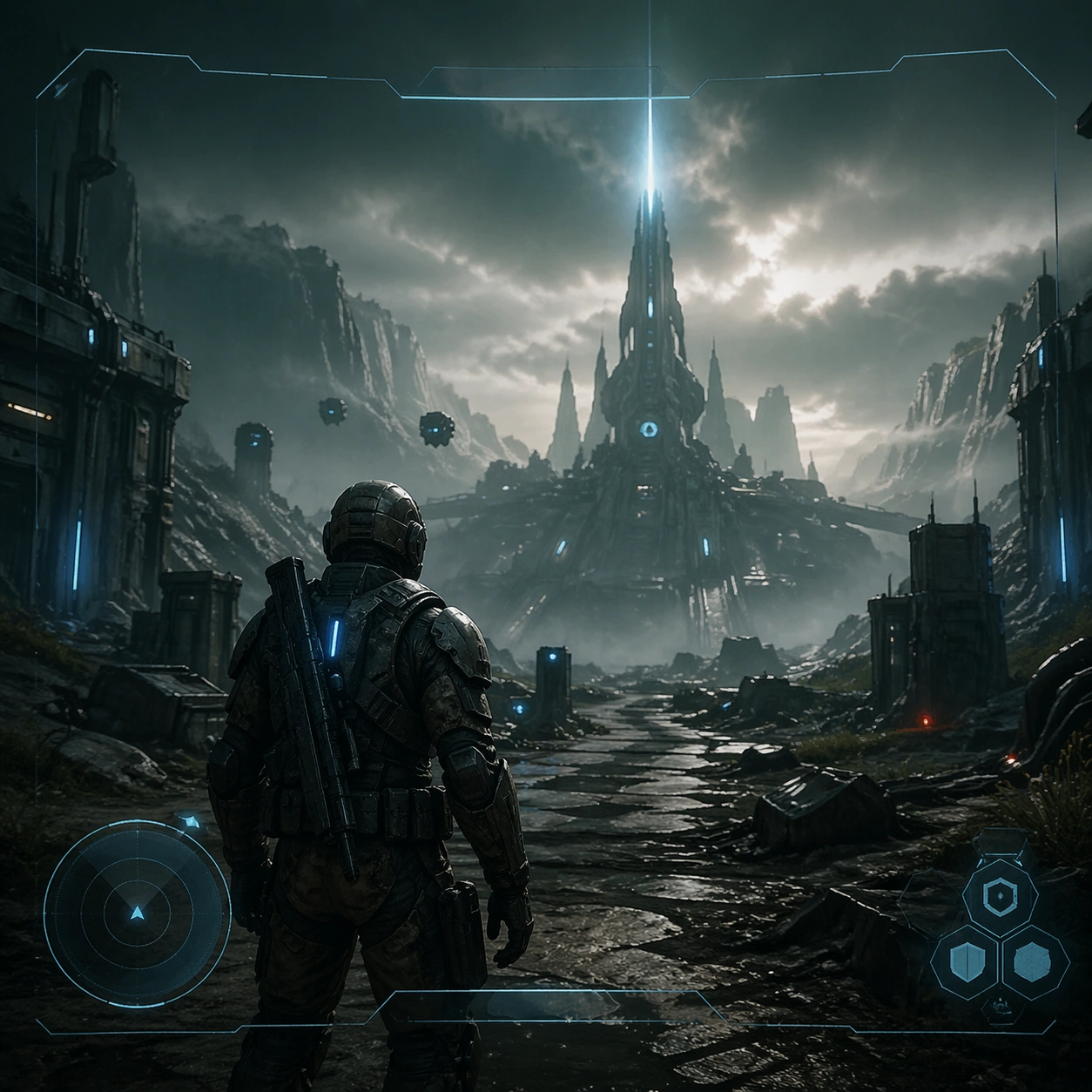
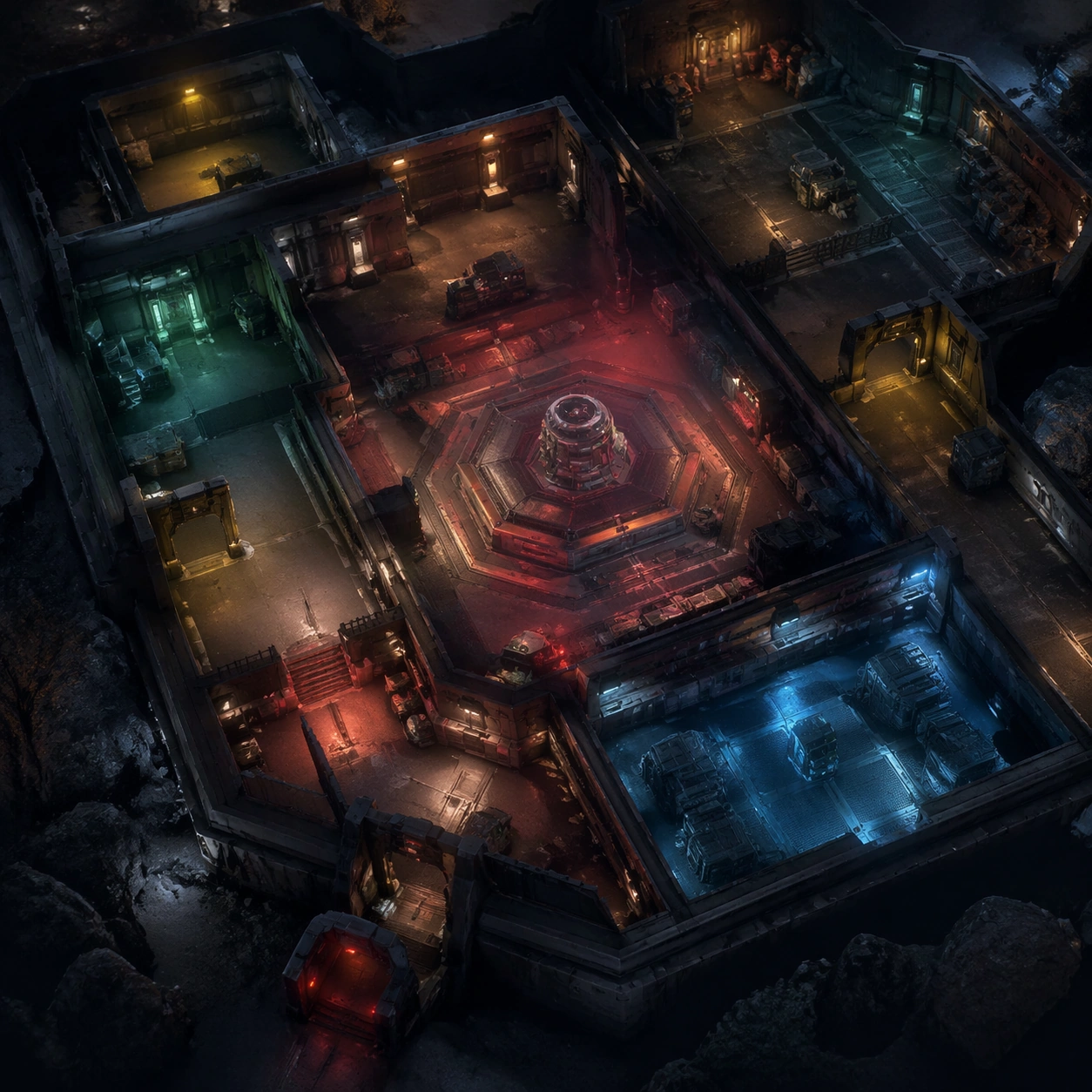
A square production-ready image designed for a game-art review wall and a commercial gallery at the same time. Frame a room overview frame centered on the objective space and player route options with disciplined lighting, clean edge separation, and enough surrounding context to prove how the asset would behave in a real product surface. The camera, crop, and tonal balance should feel intentional rather than generic, with high readability at first glance and convincing material response under closer inspection.

Subject:
Center the study on a room overview frame centered on the objective space and player route options. Translate the topic into a concrete, shippable visual statement instead of a loose mood board. Build layered object relationships, believable surface finish, and strong silhouette grouping so the image reads immediately as part of Mission Gameplay Screenshot Sequence. The subject should feel made for a live game pipeline: useful in store, UI, campaign, or art-review contexts, with visual hierarchy strong enough to survive aggressive cropping.

Important details:
the geometry should explain tactics at a glance while staying screenshot-real. Keep every supporting element subordinate to the main read, and make category separation obvious through form, color zoning, depth, and material logic rather than words. Where panels, cards, badges, or interface blocks appear, they must look professionally structured but remain unreadable. The visual language should feel premium, original, and coherent across this package, with no filler clutter and no accidental resemblance to a specific shipped game IP.

Use case:
Mission Gameplay Screenshot Sequence single study 3/5, focused on objective room overview.

Constraints:
No readable text, no watermark, no logos, preserve exact 1:1 aspect ratio, no arrows, no labels, no broken hierarchy, no generic stock-photo staging, no accidental UI gibberish.
Mode d’emploi
- Copiez le prompt original complet, paramètres compris.
- Adaptez le sujet, le texte et la composition à vos besoins.
- Utilisez un outil externe compatible ; vérifiez l’accès et le résultat.
Avant de commencer
- Vérifiez si une image de référence est nécessaire. La compatibilité ne prouve pas le modèle utilisé pour cet exemple.
- Vérifiez noms, chiffres et textes ; les versions du modèle peuvent produire des résultats différents.