
Documento originale
GPT Image 2 · en
Scene:
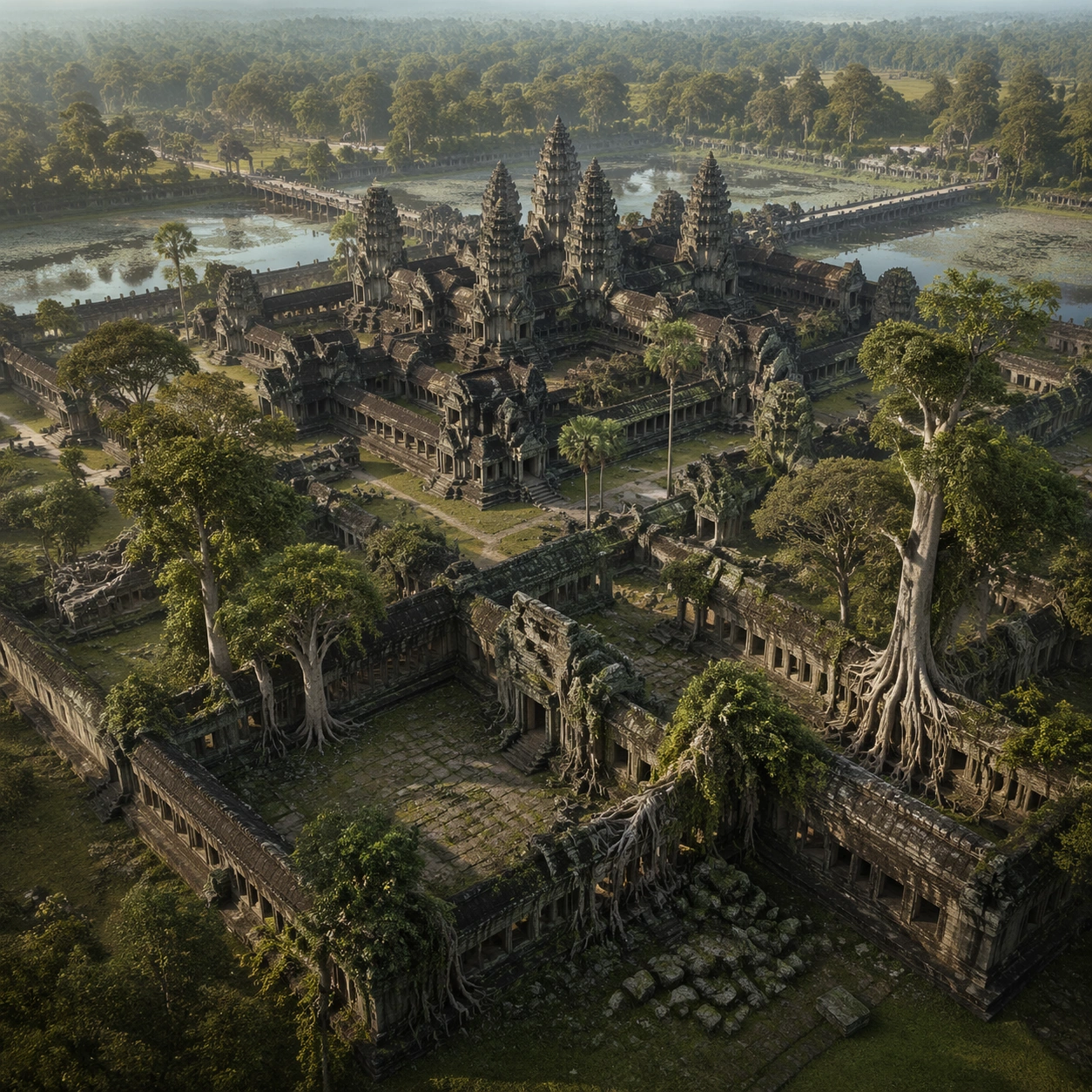
A square survey-oriented image that explains spatial logic with the clarity of an expert field overview while still reading as a finished artwork. Use a stable elevated vantage, clean depth layering, and enough visible terrain or architecture to make relationships legible without turning the frame into a literal map. The scene should feel analytical and cinematic at the same time.

Subject:
Show a slightly elevated survey image that reveals galleries, collapsed thresholds, root spread, and canopy openings as one integrated site system. Organize the composition so paths, terraces, walls, courtyards, chambers, canals, root systems, or quarry clusters can be read as a coherent system. The image should reveal how the civilization used land, water, elevation, enclosure, or monumentality. Keep all architecture, materials, and environmental details consistent with the correct place and period.

Important details:
Keep the site recognizably Khmer, with disciplined tower silhouettes, naga-era stone logic, gallery rhythm, and roots that wrap around built forms instead of replacing them with fantasy tree sculpture. This image should reward close looking by showing infrastructural logic: how stone courses align, how water moves, how rooms connect, how carved masses sit inside geology, or how vegetation interacts with built form. Avoid explicit annotation. Let composition, light, and scale cues do the explanatory work. Keep any measuring elements generic and unreadable, and make the image feel like serious research made visually elegant.

Use case:
Angkor Wat Overgrown Symbiosis single study 8/9.

Constraints:
No readable text, no watermark, no logos, preserve exact 1:1 aspect ratio, no fantasy elves, no glowing magic runes, no steel catwalks, no modern park signage, no infographic arrows, no split-screen layout, no impossible aerial geometry, no unrelated settlements.
Come usare
- Copia tutto il prompt originale, inclusi i parametri.
- Adatta soggetto, testo e composizione alle tue esigenze.
- Usa uno strumento esterno compatibile; verifica accesso e risultato.
Prima di iniziare
- Controlla se serve un’immagine di riferimento. La compatibilità non prova il modello usato per l’esempio.
- Verifica nomi, numeri e testi; i risultati cambiano con le versioni del modello.