Documento originale
GPT Image 2 · en
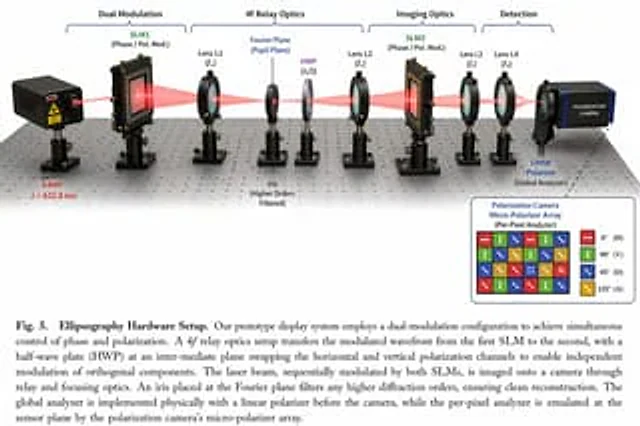
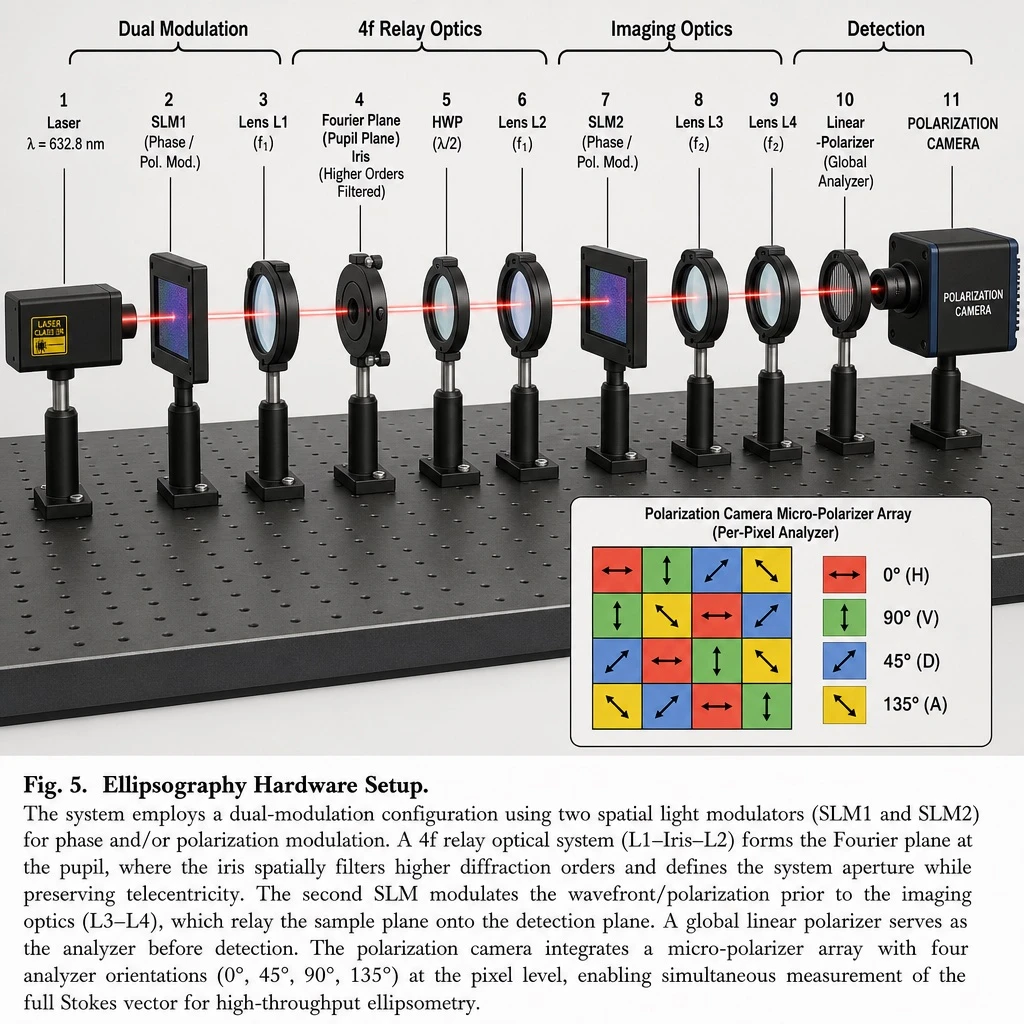
Create a 3D-rendered scientific hardware diagram in an infographic, realistic style, illustrating an optical table setup with a red laser beam passing through 11 aligned optical components mounted on black posts, arranged left to right.

Add labeled brackets across the top identifying four functional sections: 'Dual Modulation' spanning SLM1; '4f Relay Optics' spanning from Lens L1 to Lens L2; 'Imaging Optics' spanning from SLM2 to Lens L4; and 'Detection' spanning the Camera.

Arrange the optical components in this order from left to right, each with its label:
1. Laser, labeled 'Laser' and 'λ = [LASER_WAVELENGTH]'
2. SLM1, labeled 'SLM1' and '(Phase / Pol. Mod.)'
3. Lens L1, labeled 'Lens L1' and '(f1)'
4. Iris, labeled 'Fourier Plane', '(Pupil Plane)', 'Iris', and '(Higher Orders Filtered)'
5. HWP, labeled 'HWP' and '(λ/2)'
6. Lens L2, labeled 'Lens L2' and '(f1)'
7. SLM2, labeled 'SLM2' and '(Phase / Pol. Mod.)'
8. Lens L3, labeled 'Lens L3' and '(f2)'
9. Lens L4, labeled 'Lens L4' and '(f2)'
10. Linear Polarizer, labeled 'Linear', '-Polarizer', and '(Global Analyzer)'
11. Polarization Camera, labeled 'POLARIZATION CAMERA'

In the bottom-right corner, include an inset box titled 'Polarization Camera Micro-Polarizer Array (Per-Pixel Analyzer)' showing a 4x4 grid of colored squares with directional arrows, accompanied by a 4-item legend:
- Red square with horizontal arrow, labeled '0° (H)'
- Green square with vertical arrow, labeled '90° (V)'
- Blue square with diagonal arrow, labeled '45° (D)'
- Yellow square with diagonal arrow, labeled '135° (A)'

At the bottom of the image, include a figure caption starting with '[FIGURE_NUMBER]' followed by the bold title '[SYSTEM_NAME]', and a paragraph of scientific explanatory text describing the dual-modulation configuration, 4f relay optics, and polarization camera setup.
Come usare
- Copia tutto il prompt originale, inclusi i parametri.
- Adatta soggetto, testo e composizione alle tue esigenze.
- Usa uno strumento esterno compatibile; verifica accesso e risultato.
Prima di iniziare
- Controlla se serve un’immagine di riferimento. La compatibilità non prova il modello usato per l’esempio.
- Verifica nomi, numeri e testi; i risultati cambiano con le versioni del modello.