원본 문서
GPT Image 2 · en
{
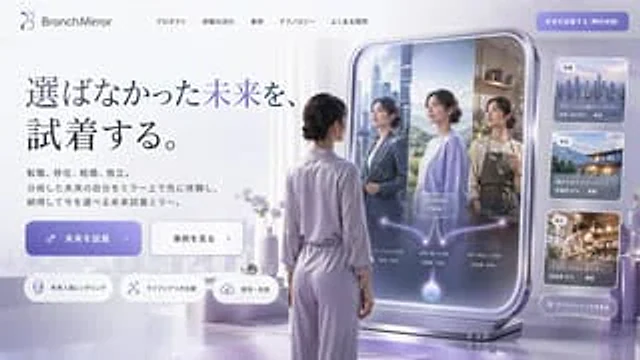
  "type": "Website landing page design draft",
  "style": "Futuristic, minimalist, 3D rendering, corporate tech style",
  "color_palette": "{argument name=\"color palette\" default=\"Soft purple, lavender purple and silver\"}",
  "header": {
    "logo": "{argument name=\"brand name\" default=\"BranchMirror\"}",
    "navigation_links": 5,
    "cta_button": "solid purple button in the upper right corner"
  },
  "hero_section": {
    "headline": "{argument name=\"main headline\" default=\"Try on the life you never chose.\"}",
    "subtext": "A Chinese paragraph explaining the product",
    "buttons": [
      {
        "style": "solid purple",
        "text": "{argument name=\"primary button text\" default=\"Try on the future\"}",
        "icon": "sparkles"
      },
      {
        "style": "white outline",
        "text": "View Case Studies",
        "icon": "arrow right"
      }
    ],
    "feature_tags": {
      "count": 3,
      "style": "Capsule shape, with icon",
      "labels": [
        "Future Personality Rendering",
        "Comparison of daily life scenarios",
        "Save and share"
      ]
    }
  },
  "main_visual": {
    "subject": "{argument name=\"subject description\" default=\"A woman wearing lavender loungewear and with her hair in a low bun\"}",
    "pose": "Standing, back to the camera, facing a large, freestanding smart mirror.",
    "smart_mirror_ui": {
      "reflections": {
        "count": 3,
        "descriptions": [
          "Women in business suits with a city background",
          "A woman wearing a casual sweater against a natural background",
          "A woman wearing an apron in a coffee shop setting"
        ]
      },
      "overlay_graphics": "The glowing, tree-like branching diagram starts from the bottom sphere and branches into three paths pointing to various mirror images, with the \"Now\" label at the center."
    }
  },
  "sidebar_ui": {
    "cards": {
      "count": 3,
      "descriptions": [
        "Cityscape map with occupational change statistics",
        "Coastal house maps with relocation statistics",
        "Flower shop images with statistics on independent entrepreneurship"
      ]
    },
    "bottom_button": "Button for viewing the frosted glass effect in all scenes"
  }
}
사용 방법
- 매개변수를 포함한 전체 원본 프롬프트를 복사하세요.
- 주제, 문구, 구도를 자신의 요구에 맞게 바꾸세요.
- 호환되는 외부 도구에서 사용하고 이용 조건과 결과를 확인하세요.
시작 전 확인
- 참조 이미지가 필요한지 확인하세요. 호환 표시는 해당 모델로 이 예시를 생성했다는 뜻이 아닙니다.
- 이름, 수치, 이미지 속 문구를 확인하세요. 모델 버전에 따라 결과가 다를 수 있습니다.