
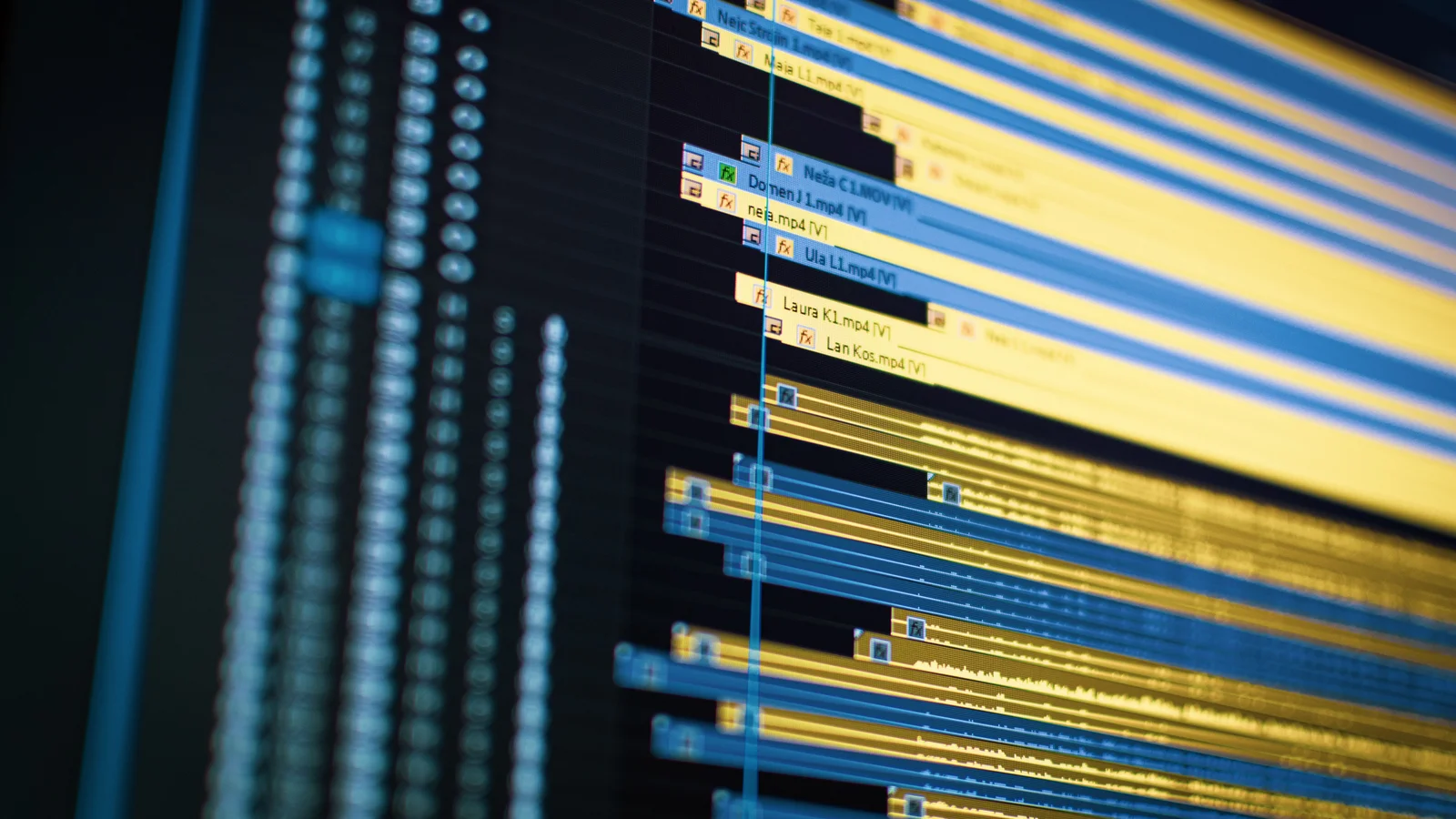
AI agents can now do more than suggest edits or generate short video clips. With Model Context Protocol (MCP), they can connect to compatible professional video editing tools, access editing controls, and carry out tasks directly on a timeline.
This changes how creators and video editors handle everyday production work. Instead of manually cutting every pause, arranging footage, or adjusting audio levels, editors can describe what they need and let an AI agent carry out supported actions.
The important difference is that the output can remain an editable video project rather than a finished clip with limited editing options.
In this guide, we'll explain how MCP connects AI agents to video editors, how to set up a connection, what editing tasks agents can handle, and how to keep creative control throughout the process.
What Is MCP, and How Does It Work With Video Editing Tools?
Model Context Protocol (MCP) is an open standard that allows AI applications to connect with external tools and services. In video editing, MCP lets compatible AI agents communicate with an editor and carry out specific operations through the tools that editor makes available.
Normally, an AI chatbot can explain how to edit footage, but someone still needs to perform those changes in editing software. MCP gives the AI agent a way to interact with the software directly.
An MCP-based video editing setup has three main parts:
-
AI agent: An assistant such as Claude, ChatGPT, or Cursor that understands the user's instructions and selects appropriate tools.
-
MCP server: The connection that exposes the video editor's supported functions to the AI agent.
-
Video editing application: The workspace where footage, timelines, audio tracks, titles, and other editing elements are managed.
For example, a creator might ask an AI agent to remove unnecessary pauses from an interview and add captions. The agent can translate that request into supported editing actions and send them through the MCP connection.
The editor then applies those changes to the project.
MCP itself does not edit videos. It provides a standard way for an AI agent to access editing tools. The actual features depend on what the connected video editor supports.
What Do You Need to Connect an AI Agent to a Video Editor?
Connecting an AI agent through MCP requires a compatible AI client, an editing platform with an MCP server, and permission to access the project.
Before beginning, check these requirements:
- An AI agent with MCP support
Choose an AI application that supports external MCP servers. Depending on the application and account plan, this may include ChatGPT, Claude, Claude Code, Cursor, or other compatible clients.
- A video editor with MCP access
Not every video editor offers an MCP connection. The application must provide a compatible server with editing functions the agent can call.
- The MCP server address
Remote MCP servers typically provide a URL that identifies the connection endpoint. The AI client uses this address to discover the tools available through the server.
- Account authentication
Some services require you to sign in and approve access before the AI agent can work with your projects. This helps prevent unauthorized changes.
- Video footage or an existing project
Prepare the footage, images, music, and other files needed for editing. Organizing assets beforehand gives the agent a clearer starting point.
Once these requirements are met, you can connect the applications and begin assigning editing tasks.
How to Connect AI Agents to Professional Video Editing Tools Using MCP
The setup process generally involves registering an MCP server in your AI application, signing in to the editing service, and confirming that the agent can access its tools.
The exact steps vary between AI clients. Here's how the process works using a professional timeline editor as an example.
Step 1: Choose an MCP-compatible video editing platform
Start by choosing an editor that exposes actual timeline controls to external AI agents.
For example, invideo remote agents connect external AI tools such as ChatGPT, Claude, and Cursor to invideo Editor through MCP, allowing agents to edit professional NLE timelines, color-correct footage, mix audio, and generate media within an editable project.
The platform lets users watch changes appear on the timeline and make manual adjustments while an agent is editing. This is useful when an editor wants to delegate repetitive tasks without giving up control over the final video.
The remote MCP server address is:
Step 2: Connect the MCP server to your AI agent
Open the connection settings in your chosen AI application and add the video editor's MCP server.
For Claude on the web or desktop, the process generally involves opening the Connectors settings, adding a custom web connector, and entering the server address.
For Claude Code, the invideo connection can be registered through the terminal:
claude mcp add --transport http --scope user invideo https://mcp.invideo.io/mcp
Restart Claude Code, then open /mcp to authenticate the connection.
ChatGPT users can install the invideo plugin through ChatGPT's plugin directory and complete the sign-in process. Cursor also supports adding the connection through its plugin settings or MCP configuration.
Once the server is registered, the AI client can discover its available editing functions.
Step 3: Authenticate the connection
Most remote editing services need permission before an AI agent can access projects.
Follow the sign-in process shown by the application and approve the requested connection.
For invideo, users sign in through their invideo account. A separate API key is not required for the standard connection.
After authentication, check that the AI agent can access the editor before assigning a larger task.
Step 4: Open a video project and provide instructions
Once connected, ask the agent to open an existing project or start a new editing session.
Begin with a clear request, including the video type, target length, and expected outcome.
For example:
Open my product demo project and create a 45-second version. Remove unnecessary pauses, keep the main product features, add a title at the beginning, and place background music under the narration.
The agent can then work through the supported editing operations.
Clear instructions matter because video editing involves creative decisions. A vague request such as "make this better" leaves too much room for interpretation.
Instead, specify which footage to keep, which sections to shorten, and what the finished video should communicate.
Step 5: Review the timeline and refine the result
After the agent starts editing, open the project in the connected video editor.
Check the cuts, transitions, audio levels, text placement, and overall pacing. If something needs adjusting, give the agent another instruction or make the change manually.
For example:
Keep the original opening shot, shorten the second scene by three seconds, and lower the background music while the presenter is speaking.
Some MCP-connected editors support live editing, so users can see changes as the agent makes them.
This creates a more flexible workflow than asking an AI tool to produce a single finished file.
Step 6: Export the finished video
Once the editing is complete, review the entire video before exporting.
Check the aspect ratio, resolution, captions, audio balance, and final duration. Pay particular attention to generated visuals and any automatically selected footage.
Choose the export format based on where the video will be published.
For example, a vertical 9:16 version is suitable for Instagram Reels and YouTube Shorts, while a 16:9 version is commonly used for standard YouTube videos.
Some platforms also allow users to export an editable project for further work in desktop editing software.
What Video Editing Tasks Can AI Agents Perform Through MCP?
AI agents can handle several stages of editing when the connected application makes those functions available. These may include arranging footage, modifying audio, adjusting visuals, and preparing alternate versions.
Building a rough cut
A rough cut is the first assembled version of a video. It establishes the basic sequence before detailed editing begins.
An AI agent can review available footage, select relevant sections, and arrange clips based on the user's instructions.
For example, a creator producing a product tutorial could ask an agent to start with the finished result, follow with the setup process, and end with a short demonstration.
This gives the editor a starting point that can be refined later.
Removing unwanted footage
Long recordings often contain repeated takes, awkward pauses, and unnecessary sections.
With access to suitable editing functions, an AI agent can identify and remove unwanted material while preserving the useful parts of a recording.
For interviews and podcasts, the agent may help shorten answers, remove retakes, and improve the flow between topics.
These changes should still be reviewed to ensure that important context has not been removed.
Adding titles, captions, and transitions
AI agents can help place text elements on a timeline, apply supported transitions, and adjust the timing of visual elements.
For example, an agent could receive instructions to add a title card, create captions, or insert a simple transition between two sections.
The editor can then review text accuracy, readability, placement, and timing.
This is particularly helpful when preparing videos for social media, where captions and clear visual structure are important.
Adjusting colors and audio
Color correction and sound editing are important parts of a professional video workflow.
When the connected editor exposes these controls, an AI agent can help match the colors of different shots, adjust brightness, and work with audio levels.
For example, an editor might ask the agent to balance three interview clips or lower background music during spoken dialogue.
Final checks remain important because automated corrections may not always match the intended visual style or sound.
Generating additional media
Some editing platforms combine MCP-based editing with AI media generation.
This allows an agent to generate supporting images, video clips, or audio when the project needs additional material.
For instance, an editor could request a short establishing shot for a travel video and ask the agent to place it between two interview segments.
Generated content should be reviewed for visual accuracy, continuity, and suitability before publication.
What Are the Benefits of MCP-Based Video Editing?
The main benefit of MCP-based video editing is that it connects natural-language instructions to real editing actions. Instead of treating AI as a separate content generator, creators can bring it into an existing production workflow.
Less repetitive manual work: Editors can assign routine jobs such as basic trimming, clip arrangement, and title placement to an agent.
Better workflow continuity: With the right editor, agents can work within an existing project rather than requiring the creator to rebuild the edit from a generated file.
More room for creative decisions: Editors can spend more attention on storytelling, timing, and the final presentation while assigning suitable tasks to AI.
Easier revisions: Specific instructions allow creators to request changes without repeating every manual step.
Flexible editing control: Platforms that support both agent-driven and manual editing let creators move between the two methods as needed.
These advantages depend on the quality of the AI agent, the editing tools exposed through MCP, and how clearly the task is described.
What Are the Limitations of AI Agents in Video Editing?
MCP makes it possible for AI agents to interact with editing software, but it does not guarantee that every edit will be accurate or visually effective.
One limitation is tool availability. An AI agent can only perform operations that the connected MCP server makes accessible. Advanced effects, specific export formats, or particular editing controls may not be supported by every platform.
Another concern is creative judgment. AI agents can carry out instructions, but they may not always understand subtle choices involving emotion, storytelling, or brand style.
Security also matters. Connecting an agent to an editing platform may give it permission to access project files or make changes. Review the permissions, use trusted MCP servers, and keep backups or project versions when possible.
Finally, costs can vary. Some platforms provide free editing functions but charge for generated images, video, or audio. The AI client may also have its own subscription requirements or usage limits.
For these reasons, the most dependable approach is to assign well-defined tasks and review their results before publishing.
How Can You Get Better Results From MCP Video Editing Agents?
Good instructions are essential when an AI agent works on a professional video timeline.
Start by defining the purpose of the video. A product demo, podcast highlight, training video, and social media advertisement all need different editing choices.
Next, break larger editing projects into smaller tasks.
For example, rather than asking an agent to finish an entire video at once, you can begin with footage selection. After reviewing that result, move to pacing, titles, audio, and final delivery.
It also helps to provide specific creative rules. These might include a preferred video length, brand colors, caption style, music level, or target platform.
Keep track of project versions when the editor supports them. That way, you can compare edits and return to an earlier version if needed.
Most importantly, review the final result yourself. An AI agent can handle editing operations, but the creator remains responsible for the accuracy, quality, and overall message of the video.
Frequently Asked Questions
Can ChatGPT edit videos using MCP?
Yes. ChatGPT can edit videos through MCP when it has access to a compatible video editor and the required editing tools. Supported actions depend on the connected service. An editor with timeline controls can allow ChatGPT to arrange clips, make cuts, and apply other supported changes directly to a video project.
Can Claude connect to professional video editing software?
Yes. Claude supports connections to external tools through MCP, including compatible remote video editing services. After authentication, users can provide editing instructions in Claude and review the changes in the connected application.
Do I need coding skills to connect an AI agent to a video editor?
Not necessarily. Some platforms provide guided connections or plugins that do not require coding. Command-line tools and manual MCP configuration may require basic technical knowledge, but users generally do not need to build their own MCP server to connect to an existing supported service.
Is MCP video editing the same as AI video generation?
No. MCP is a connection standard that allows AI agents to access tools. AI video generation creates new video content from inputs such as text or images. MCP-connected editing agents can modify existing footage and arrange clips on a timeline. Some platforms support both editing and generation in the same workflow.
Can I manually edit videos after an AI agent makes changes?
Yes, if the connected platform keeps the agent's changes in an editable project. Users can review the timeline, adjust individual clips, change effects, and refine the result manually. This depends on the editing software and how it handles agent-driven changes.
Conclusion
Connecting AI agents to professional video editing tools through MCP creates a more practical way to bring AI into video production.
Instead of relying only on editing suggestions or generated clips, creators can give agents access to supported timeline controls and assign them real editing tasks.
From building rough cuts and arranging footage to adjusting audio and preparing social media versions, MCP can reduce the manual steps involved in video production.
The best results come from combining clear instructions, compatible editing tools, and human review. AI agents can handle more of the execution, while creators stay in control of the story and the final video.