Original document
GPT Image 2 · en
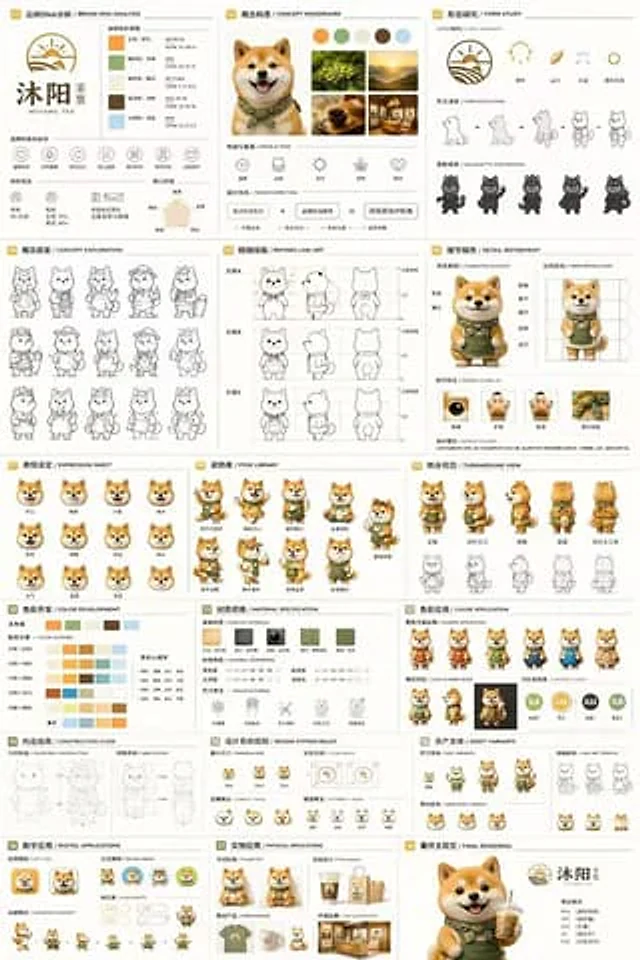
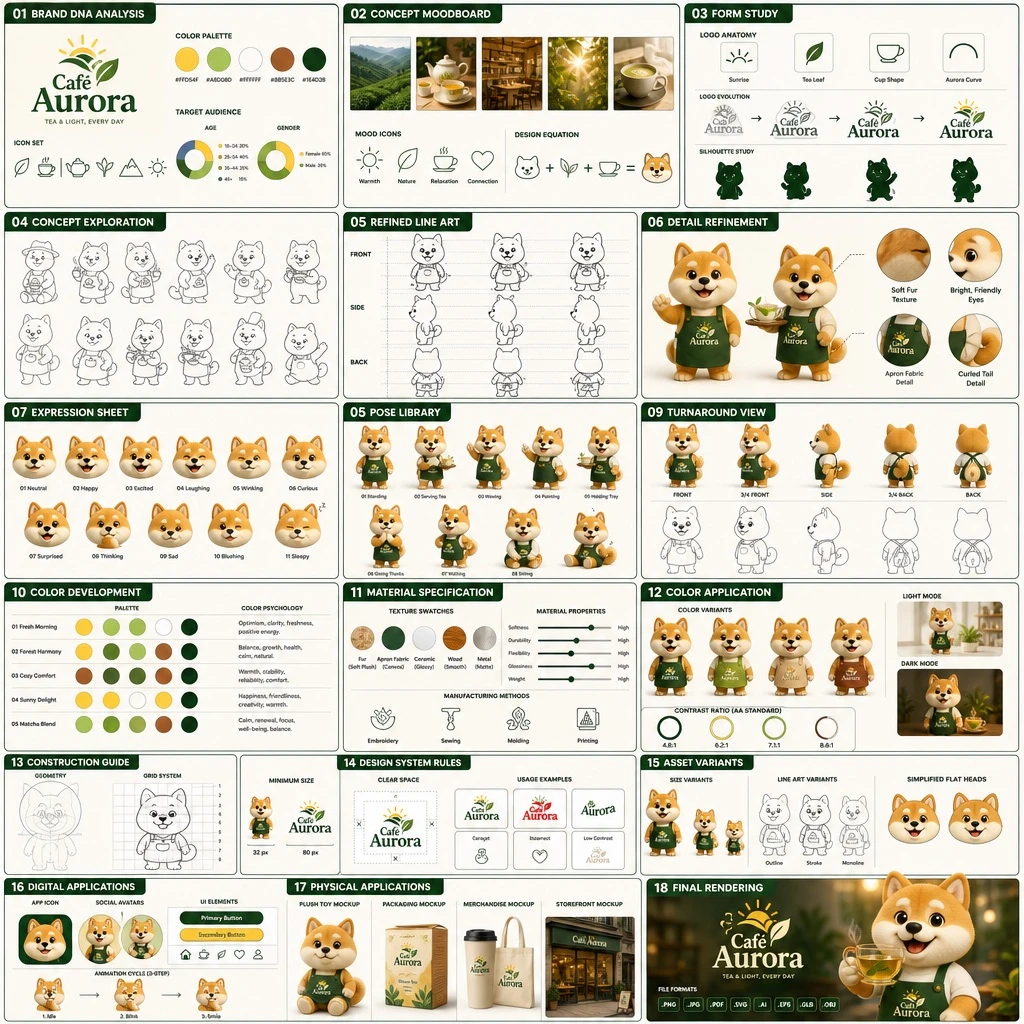
Create an 18-panel brand identity and character design document, arranged in a grid of 3 columns by 6 rows. The brand is called [BRAND_NAME], operating in the [INDUSTRY] industry, with a color palette of [PRIMARY_COLOR], [SECONDARY_COLOR], white, brown, and dark green. The main subject is [CHARACTER_DESCRIPTION]. The 18 sections should be labeled and structured as follows: 01 BRAND DNA ANALYSIS — logo, 5 color swatches, 6 icons, target audience charts; 02 CONCEPT MOODBOARD — 5 photo references, 4 mood icons, a design equation; 03 FORM STUDY — 4 logo anatomy icons, 4 evolution steps, 4 silhouettes; 04 CONCEPT EXPLORATION — 12 line-art character sketches; 05 REFINED LINE ART — 3 rows of front and side line art with proportion guides; 06 DETAIL REFINEMENT — 2 full-body renders with labels, 4 circular close-ups; 07 EXPRESSION SHEET — 11 3D rendered head expressions; 08 POSE LIBRARY — 9 full-body 3D rendered poses; 09 TURNAROUND VIEW — 5 full-body 3D renders with 5 matching line-art views; 10 COLOR DEVELOPMENT — 5 rows of 5-color palettes with color psychology text; 11 MATERIAL SPECIFICATION — 5 texture swatches, property sliders, 4 manufacturing icons; 12 COLOR APPLICATION — 4 color variant renders, 2 light/dark renders, 4 contrast rating circles; 13 CONSTRUCTION GUIDE — 2 line-art diagrams for geometry and grid; 14 DESIGN SYSTEM RULES — minimum size icons, clear space diagram, 4 usage examples; 15 ASSET VARIANTS — 3 size variants, 3 line-art variants, 3 simplified flat heads; 16 DIGITAL APPLICATIONS — 1 app icon, 2 social avatars, UI elements, a 3-step animation cycle; 17 PHYSICAL APPLICATIONS — plush toy mockup, packaging mockup, merchandise mockup, storefront mockup; 18 FINAL RENDERING — a large high-resolution 3D render of the mascot holding tea, the logo, and a file format list. Each section title should appear in [LANGUAGE], formatted as a professional branding presentation document.How to use
- Copy the complete original prompt, including any parameters.
- Replace the subject, text and composition with your own requirements.
- Use a compatible external tool; check its current access conditions and review the result.
Before you start
- Check whether a reference image is required. A compatible model label does not mean this example was generated with that model.
- Keep names, figures and visible text accurate; results can vary between model versions.