Original document
GPT Image 2 · en
Scene:
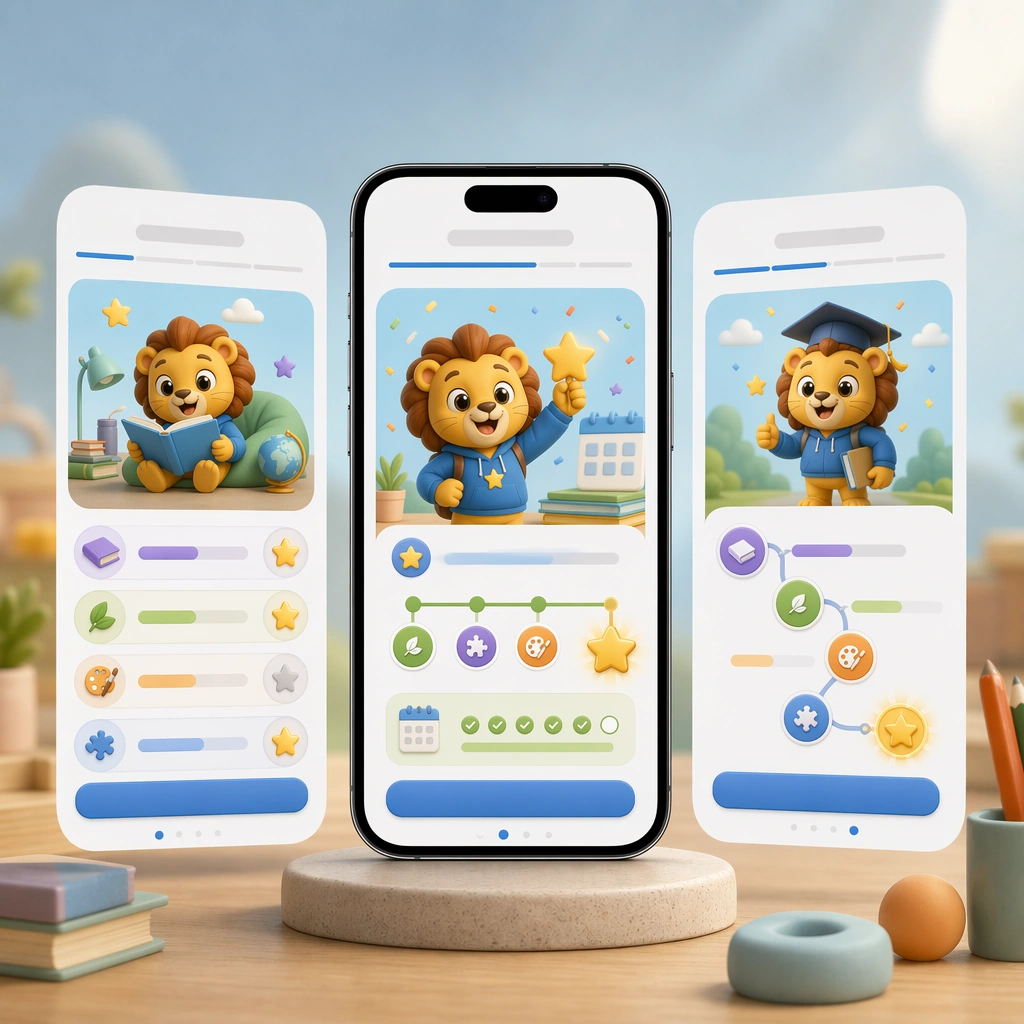
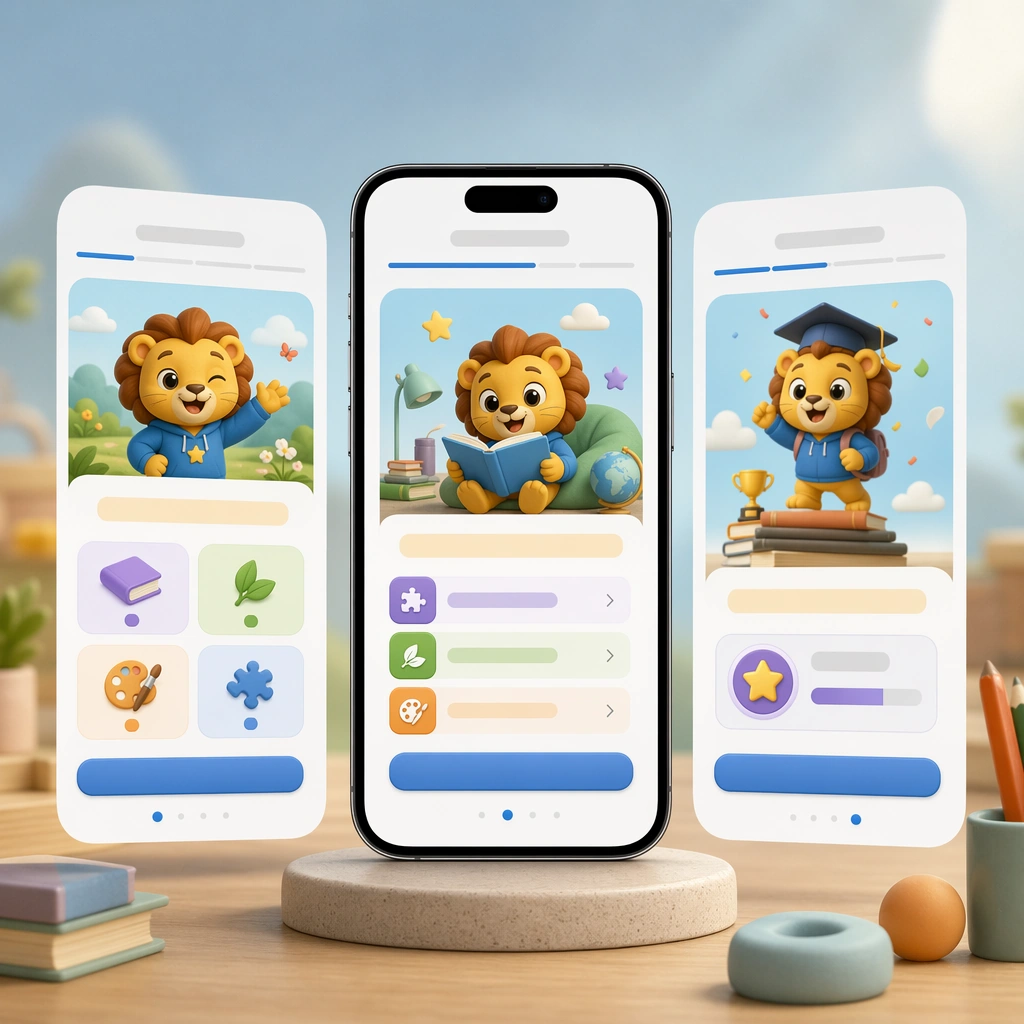
Keep the same square device-shot composition, camera angle, and product-lighting polish from the reference onboarding image. The arrangement should feel like the next approved asset in the same marketing and product-design family, with identical device scale, spacing logic, and color confidence. Keep the square frame balanced, calm, and production-ready so the asset can serve gallery review, research comparison, and real educational delivery at the same time.

Subject:
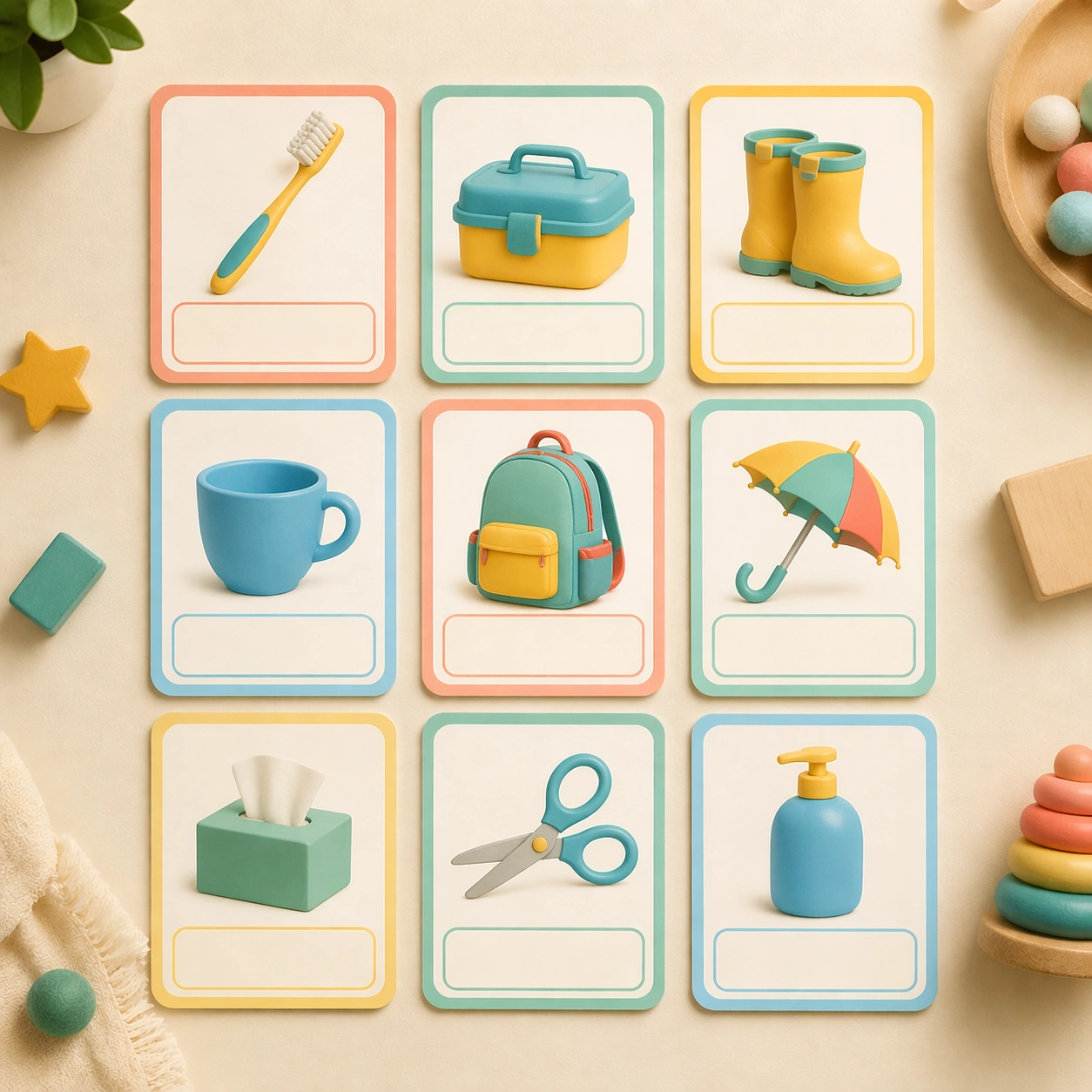
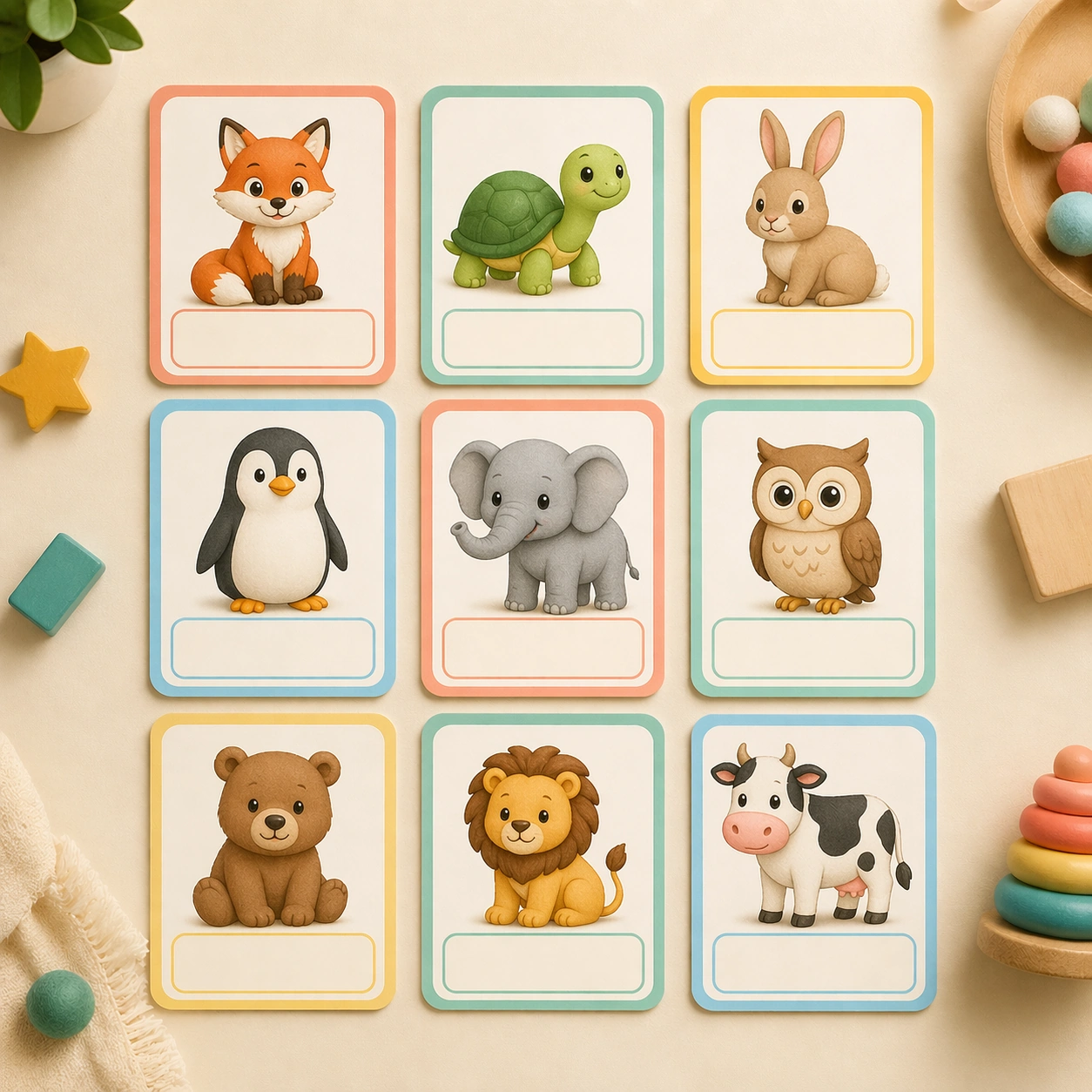
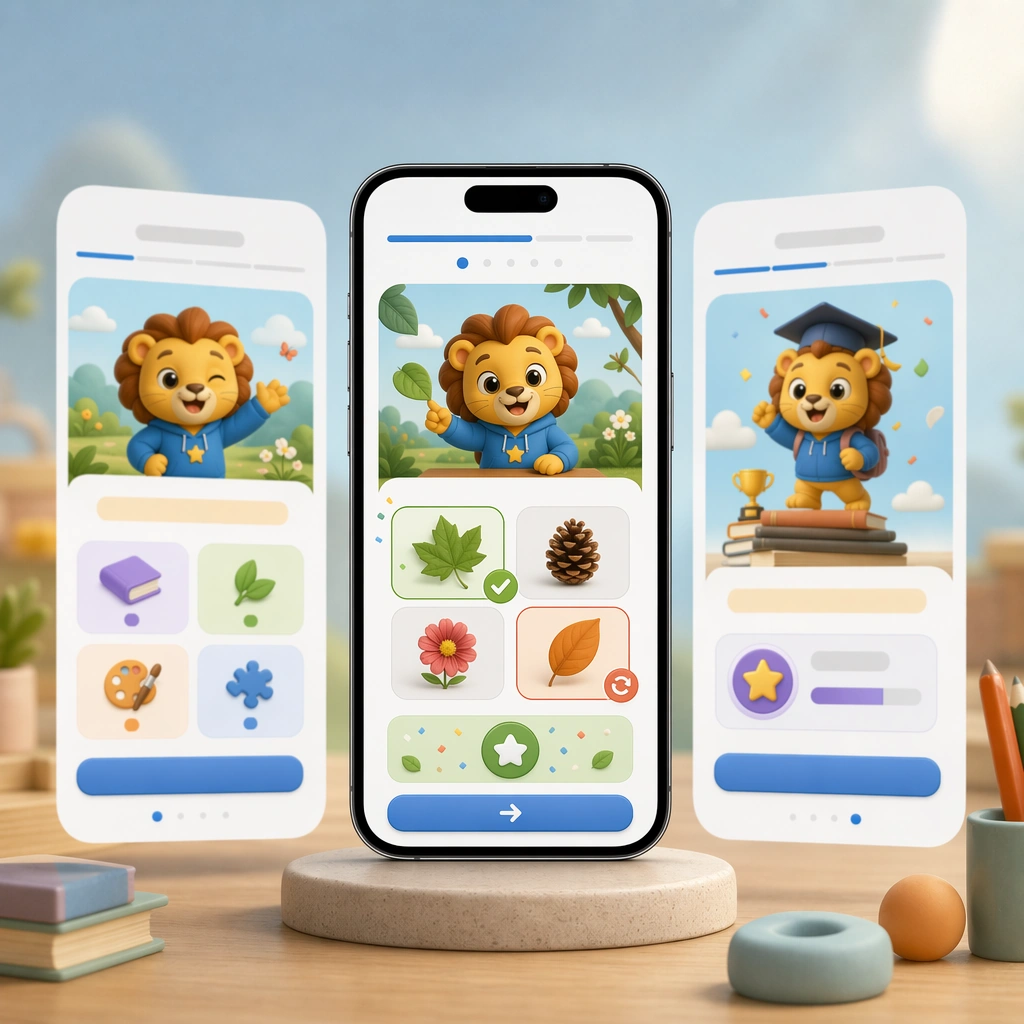
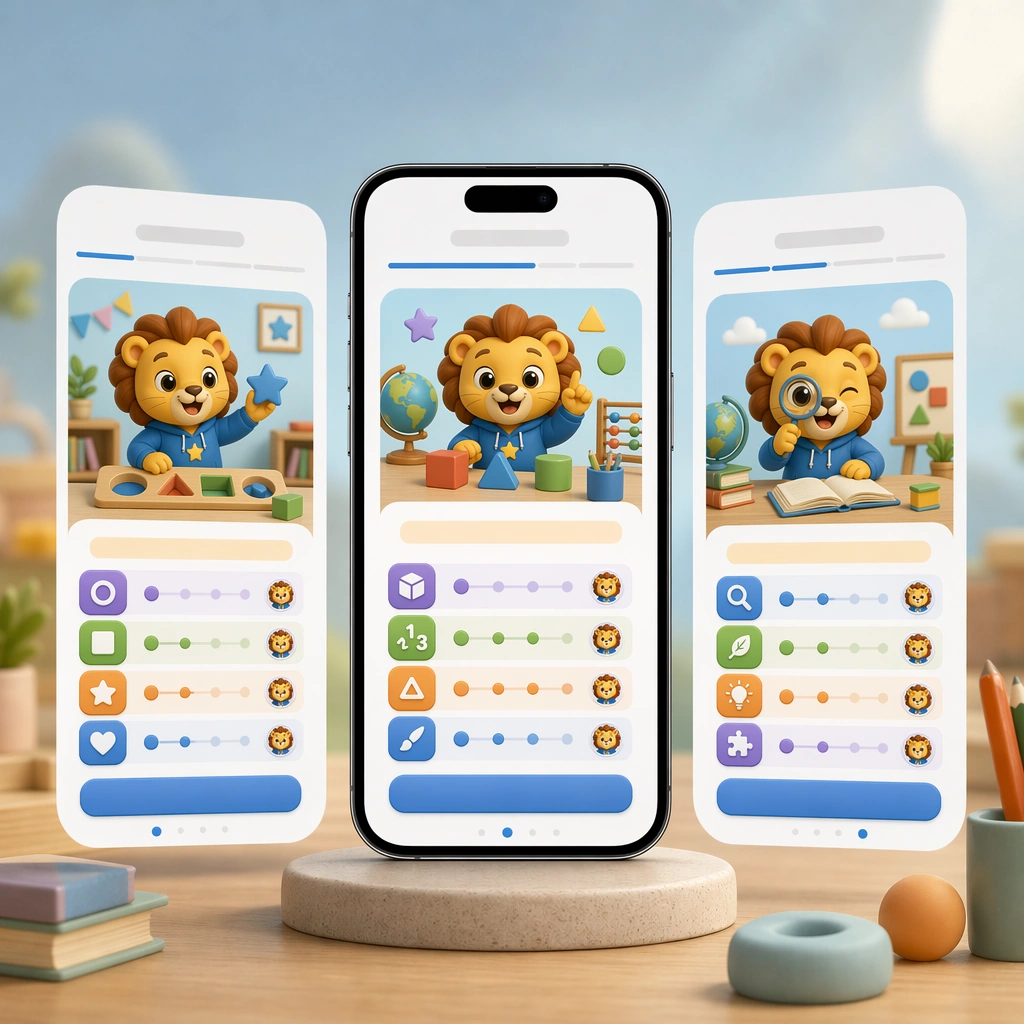
Swap the flow into a lesson-start or placement moment using skill cards, difficulty ladders made of icons, avatar cues, and a large action button shape without any written label. The screen must feel motivating and easy to understand, with one clear path forward for a young learner. The subject matter should feel intentionally selected for a coherent curriculum family rather than like a random decorative assortment.

Important details:
Preserve the reference layout rules exactly: same card radius, mascot behavior, navigation rhythm, and color hierarchy. Let the educational state change, not the underlying system, so the product reads as one coherent app experience. Preserve the same mobile device framing, card radius, mascot style, color system, icon weight, and spacing rhythm from the reference screen set. Use variation only in the teaching content, supporting props, and scene-specific mood while preserving the core visual system exactly.

Use case:
Learning App Onboarding and Lesson UI series study 2/4, placement lesson screen.

Constraints:
No readable text, no watermark, no logos, preserve exact 1:1 aspect ratio, no readable UI copy, no app-store branding, no logos, no generic gaming clutter, no impossible device anatomy, no notification spam.
How to use
- Copy the complete original prompt, including any parameters.
- Replace the subject, text and composition with your own requirements.
- Use a compatible external tool; check its current access conditions and review the result.
Before you start
- Check whether a reference image is required. A compatible model label does not mean this example was generated with that model.
- Keep names, figures and visible text accurate; results can vary between model versions.