Original document
GPT Image 2 · en
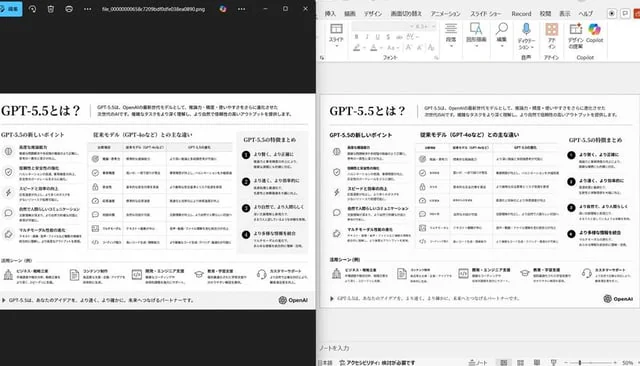
Using the provided reference image of the PowerPoint slide screenshot, recreate it as a clean, polished slide conversion result inside a side-by-side desktop comparison. Keep the same Japanese slide topic and overall layout, but remove the dense selection handles, edit boxes, and malformed vector artifacts from the reference so the slide appears properly reconstructed. Show 2 panels: on the left, a dark image viewer window displaying the exported slide image; on the right, the same slide opened in PowerPoint editing view. Preserve the original monochrome infographic style and Japanese text structure, but make the typography legible and the icons, dividers, and columns cleanly aligned. Keep the slide as a single-page infographic with 5 main content areas: 1 top title/header row, 3 mid-page comparison columns, 1 bottom use-case row containing 5 icon-labeled items. Include a footer line and the OpenAI logo at bottom right. Emphasize that this is a faithful PPT reconstruction from the uploaded image, with a realistic Windows desktop app screenshot look.How to use
- Copy the complete original prompt, including any parameters.
- Replace the subject, text and composition with your own requirements.
- Use a compatible external tool; check its current access conditions and review the result.
Before you start
- Check whether a reference image is required. A compatible model label does not mean this example was generated with that model.
- Keep names, figures and visible text accurate; results can vary between model versions.