
An AI YouTube video editor is software that uses artificial intelligence to handle repetitive editing work, such as selecting takes, cutting dead air, and assembling clips into a first draft. The promise is speed. You spend less time on grunt work and more time on the video itself.
The risk is control. Some tools hand back a finished file and nothing else. You cannot see what changed, and you cannot fix a bad cut without starting over.
For a channel with a real voice, that trade is a bad one. Your pacing, your jokes, and your structure are what viewers come back for. This guide shows you how to pick an AI editor that does the boring work while leaving the timeline in your hands.
Why does timeline control matter for YouTube creators?
The timeline is where your editing decisions live. Every trim, every cut, and every clip order is a choice you made or approved. If an AI tool hides that layer, you lose the ability to shape the video.
YouTube content also changes constantly. You might re-cut an intro after a thumbnail test. You might shorten a section because retention drops at the two minute mark. These fixes need an editable project, not a flattened export.
Creator workflows are rarely clean either. A single upload may include long recordings, repeated takes, b-roll, and screen captures. You need to adjust one part without breaking the rest.
When a tool locks you out of the timeline, every small fix becomes a full redo. That cost adds up fast. Over a month of weekly uploads, it can erase the time the AI was supposed to save.
What should an AI editor actually automate?
Good automation targets the repetitive part of editing. The craft, meaning story, rhythm, and feel, should stay with you.
Repetitive work includes reviewing hours of footage and comparing takes. It also includes cutting false starts, removing filler, and arranging clips in order. Fixing audio levels and making platform versions belong on that list too.
Judgment work is different. Deciding what the video is about is your job. Choosing the emotional peak of a scene is your job. A good tool takes the first kind of work and leaves the second kind alone.
Think of the AI as an assistant editor. You give direction in plain language. The assistant does the assignment and hands back a result you can review. Then you redirect, refine, or approve.
Which features protect your timeline control?
Use these five checks on every tool you consider. Each one tests whether you stay in charge.
A real, editable timeline. The output should open as a project with separate clips and tracks. A single exported video file means you have lost control.
Visible changes. You should be able to see every cut the AI made. If a decision is hidden, you cannot correct it.
Plain language direction. You should be able to tell the tool what you want in words. It should follow your instructions about topic, order, pacing, or story.
Manual refinement. You must be able to move clips, swap takes, and trim by hand at any point. The AI should never block your edits.
Footage flexibility. Check support for talking head clips, multicam shoots, and scripted or unscripted recordings. YouTube projects vary, and your tool should keep up.
Score each check from one to five. A tool that fails the first two checks is not worth testing further. Control is the foundation, and the rest builds on it.
Which platform fits a YouTube editing workflow?
After you set your checks, compare real platforms against them. Look for a tool that places AI agents inside a professional editing environment. The agents should work on your timeline, not outside it.
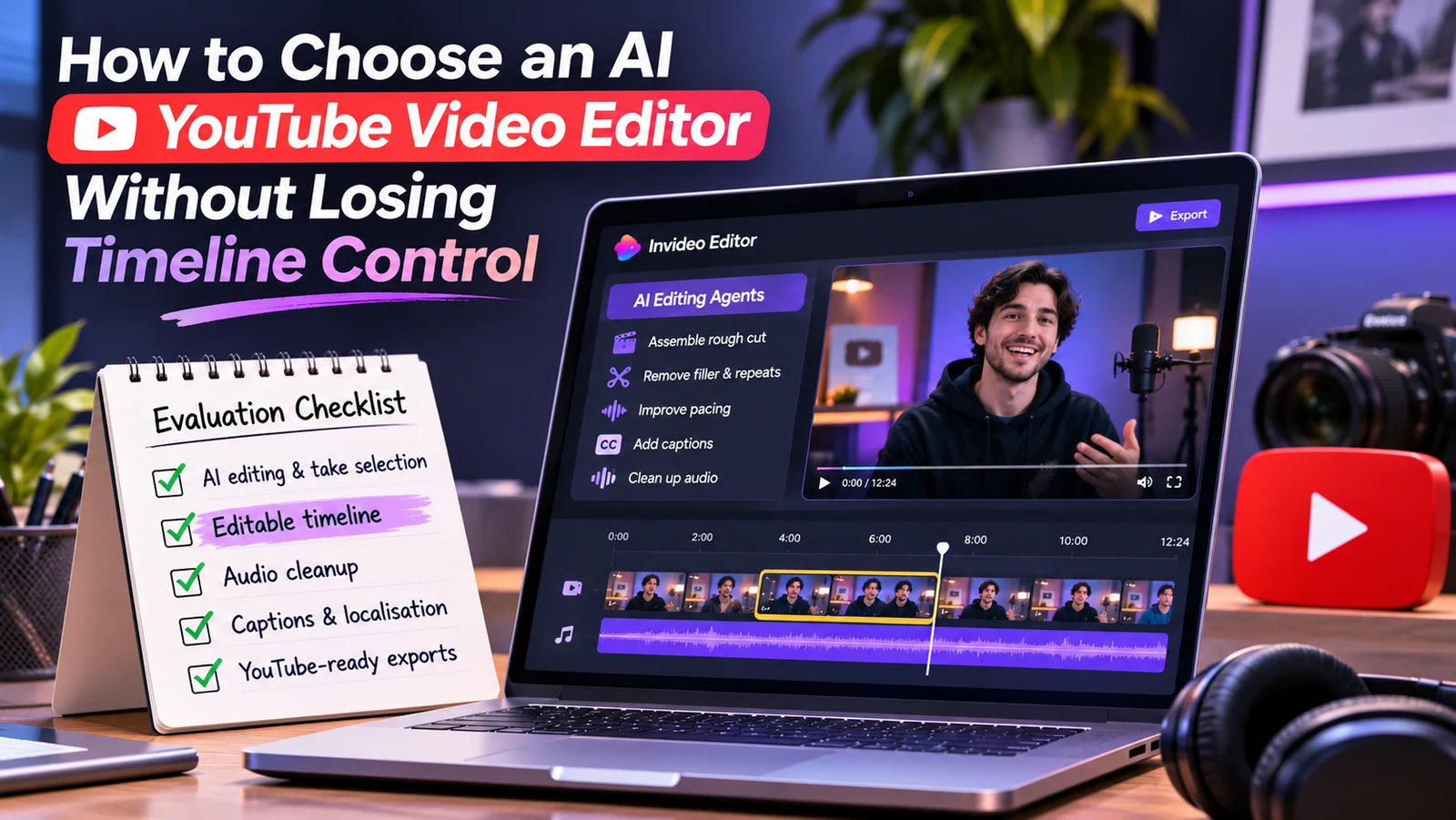
Invideo Editor is built around this idea. It is a browser based editor with AI editing agents you can assign real work to. You give the agents your footage and your direction, and they work directly on the timeline. For creators searching for a free youtube video editor that keeps editing control, this setup answers the main concern.
The agents review footage, select usable takes, and cut repeated lines and mistakes. They then build an editable base cut that runs from start to finish. It is a starting point, not a final deliverable. You carry on editing from there.
The tool also covers more than assembly. You can search footage by describing a moment, adjust pacing in plain language, clean up dialogue, and grade color. It also supports dubbing and cut-downs for social platforms. That is useful when one long video needs several versions.
Invideo Editor is free to use, and it runs in the browser. You sign up and start editing. That makes it easy to test against your five checks without any budget risk.
How do you test an AI editor on your own footage?
Pick a recent video you already edited by hand. Use the raw recordings, including the mistakes. This gives you a clear benchmark to compare against.
Run the same footage through each tool using these steps:
Upload messy footage with repeated takes, false starts, and pauses.
Add a script or transcript if you have one.
Describe the cut you want in plain language.
Review the timeline from start to finish.
Fix any errors by hand and time how long it takes.
If you try invideo Editor, go to ai.invideo.io and select Timeline Editor below the prompt box. Create a blank timeline, open Media, and upload your footage. Then create an agent and describe how you want the material assembled.
Bring messy footage the first time. Clean single take clips will not show you much, because there is nothing for the agent to clear away. The test only works when the source material is hard.
Compare the finished timeline with your own manual edit. Look at which takes were chosen. Look at how much cleanup you needed. The gap between the two tells you what the tool really saves.
What mistakes should you avoid when choosing?
Many creators pick a tool for the wrong reason. Avoid these common errors.
Choosing by demo alone. Demos use tidy footage. Always test with your own recordings.
Ignoring export only tools. If a tool gives you a file but no timeline, you cannot revise it later.
Chasing every feature. More features do not mean better control. Focus on the five checks above.
Skipping the second test. One good result can be luck. Run a second project to confirm the pattern.
Giving away creative decisions. Let the AI cut the waste. Keep story and pacing choices for yourself.
None of these mistakes are hard to avoid. They just need a little patience before you commit to a workflow.
How do you decide when the trial ends?
Set a simple rule before you start. If the tool saves meaningful time and you still trust the timeline, keep it. If you spend more time fixing than editing, move on.
Pay attention to how the tool feels over a few uploads. Does it follow your direction on the first try? Do you open the timeline with confidence? These small signals matter more than any feature list.
Also check how it fits with your team. Many channels use an editor, a producer, and a creator who all give feedback. A shared project where everyone sees the same timeline cuts down on confusion and duplicate work.
Final thoughts
The best AI YouTube video editor is not the one that hides the most work. It is the one that does the repetitive work and shows you every change. Your timeline should always stay open, visible, and editable.
Use the five checks, test with messy footage, and score each tool honestly. A free option such as invideo Editor lets you run that test at no cost. If it passes, you gain a faster workflow without giving up the control that makes your channel yours.
FAQs
What is the best AI video editor for YouTube?
The best choice depends on your footage and workflow. Look for a tool with an editable timeline, visible AI changes, and support for the formats you shoot. Test two or three options on your own raw footage before deciding.
Is there a free AI video editor for YouTube?
Yes, several free options exist, though limits vary. Invideo Editor is free to use and runs in the browser. Always check what the free tier includes before you commit a full project to it.
Can AI edit YouTube videos for you?
AI can handle the repetitive parts, such as selecting takes, removing filler, and building a first cut. It works best as an assistant, not a replacement. You still guide the story, pacing, and final polish.
Do YouTubers use AI to edit their videos?
Many creators now use AI for tasks like silence removal, take selection, captioning, and making short versions. Most keep manual control over the final timeline. The goal is to save time without losing their editing style.
How do I keep control of my timeline when using AI?
Choose a tool that works directly on an editable timeline instead of exporting a finished file. Make sure you can see every change and adjust clips by hand. Avoid any platform that hides its decisions.