
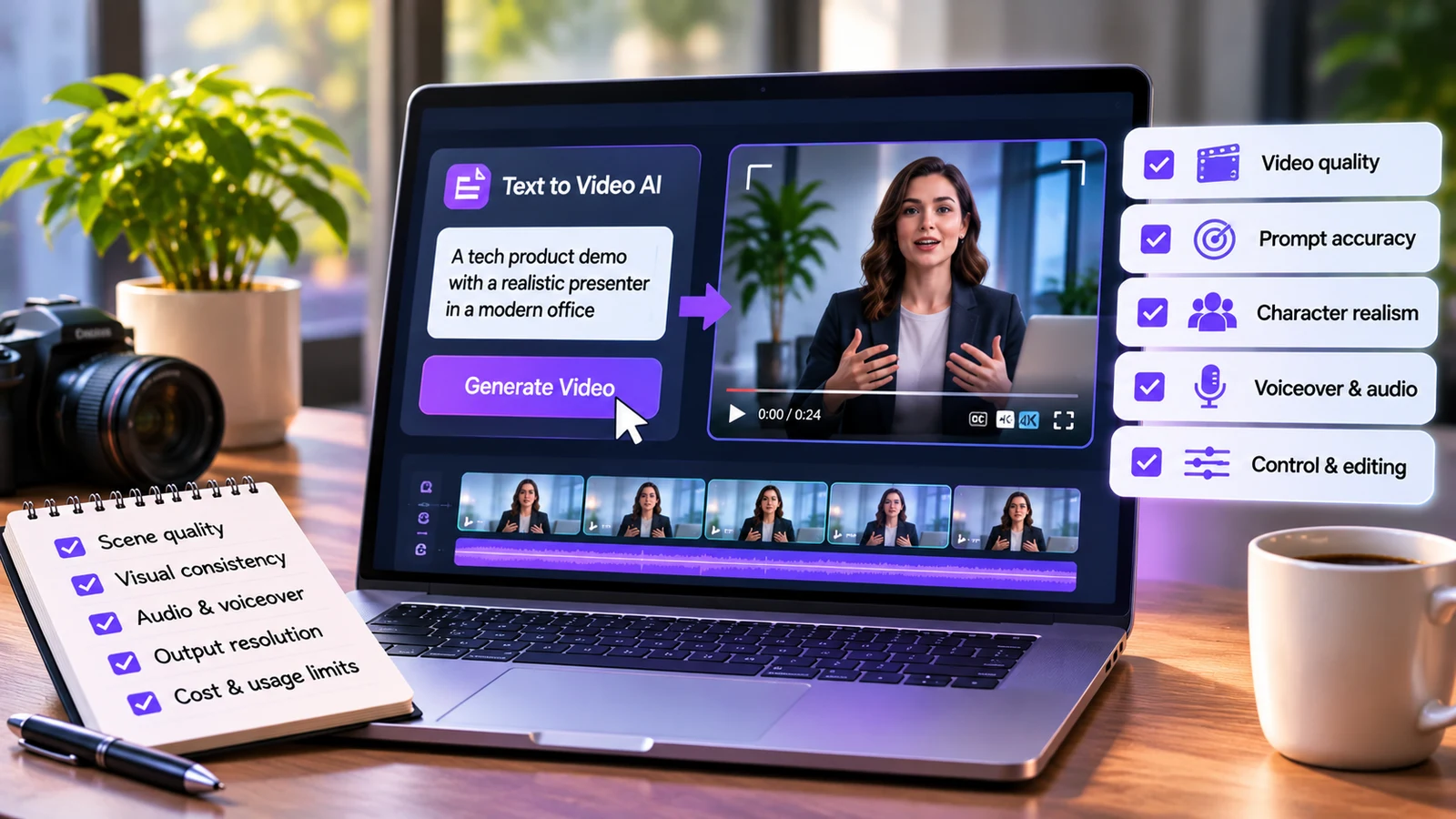
A text-to-video AI tool turns a written prompt into a video clip. You describe a scene, and the tool generates visuals, motion, and sometimes sound. The best demos look cinematic. Real projects often look very different.
Every vendor leads with its strongest clip. It was probably picked from dozens of attempts. It tells you what the tool can do at its peak, not what you will get on a normal Tuesday.
This guide shows how to test tools on your own terms. It covers what demos hide, which criteria deserve your attention, and how to run a fair comparison. It also explains how to judge the full workflow, because a clip alone is not a finished video.
Why do text-to-video demos mislead buyers?
A demo is a sales asset. It is built to impress, so every choice favors the tool.
Prompts in demos are carefully written. They describe simple scenes with one subject and slow motion. Those conditions suit current models. Busy scenes, fast action, and specific products are harder.
Demos also hide the miss rate. You see one polished result, not the failed attempts behind it. If a tool needs ten tries for one usable clip, your real cost is ten times what it appears.
Another gap is length. Short clips are easy to show. A full video needs many clips that look like they belong together. Demos rarely prove that.
Finally, demos skip the work that comes after generation. Trimming, pacing, voiceover, music, captions, and export all take time. A tool that ignores them leaves the hard part to you.
What criteria should you use to judge text-to-video tools?
Use a fixed list so every tool gets the same test. Score each criterion from one to five.
Prompt accuracy. Check whether the video matches what you wrote. Missing objects, wrong actions, and ignored details count against the tool.
Motion and physics. Watch for natural movement. Warped limbs, floating objects, and flickering backgrounds are common failures.
Visual quality. Review resolution, lighting, and sharpness at full size. Small previews hide flaws.
Consistency across clips. A video usually needs several shots. Generate multiple clips of the same character or product. Compare how well the look holds.
Control. See how much you can steer. Camera moves, style, duration, and aspect ratio all matter.
Speed. Measure the wait for each result. Slow turnaround limits how many ideas you can test.
Cost per usable clip. Divide total spend by the number of clips you would publish. This number is more honest than the price per generation.
Workflow fit. Check what happens after the clip is made. Editing, audio, and export options decide how much extra work remains.
How do you run a fair test of a text-to-video tool?
A fair test uses identical inputs across tools. Follow a clear process.
Write a prompt set. Create eight to ten prompts. Include simple scenes, complex scenes, product shots, and scenes with people.
Use the same prompts everywhere. Do not tweak them for each tool. Small changes can distort the comparison.
Generate several attempts per prompt. Run at least three. One result proves very little.
Log every outcome. Record which clips were usable and what went wrong with the others.
Review at full size. Watch each clip on a large screen, more than once.
Score the results. Apply your criteria and total the points.
Finish a real video. Build one short piece from the clips. This reveals the true effort involved.
Include hard prompts on purpose. Ask for hands, readable text, or a crowded street. These cases separate strong tools from average ones.
Keep honest notes. Failed attempts are data, and they show the real cost of using the tool.
Which platform should you use to go from text to finished video?
Your answer depends on the output you need. Some tools only generate clips. Others support the full path from prompt to finished video.
For generation, a text to video tool lets you type a prompt and receive a clip in return. It is the fastest way to turn an idea into a draft without a camera or crew.
Generation is only part of the job. Most videos need several clips joined in order, with sound, pacing, and cleanup. That stage needs an editor.
Invideo Editor is built for that stage. It is a professional, browser-based editor with AI editing agents you can assign real work to. It is free to use, so you can test it beside your generation tools.
Invideo Editor can assemble generated media and existing footage against a structure you supply. Your text-to-video clips can sit on one timeline with real footage, voiceover, and music. You can inspect every change and refine by hand.
When you compare platforms, ask one more question. Does the tool reduce total work, or does it only move the work somewhere else? A strong generator that creates extra manual steps may cost you more time than it saves.
How do you test prompt accuracy and visual consistency?
These two areas cause the most frustration, so give them extra attention.
For prompt accuracy, write prompts with specific details. Name the subject, the action, the setting, and the camera move. Then check each detail against the result.
Score the output in parts. Did the subject appear? Did it do what you asked? Did the setting match? Partial matches still waste time.
Test negative cases too. Ask for something unusual, such as a product with readable text. See whether the tool handles it or invents gibberish.
For consistency, generate a short sequence with the same character. Use the same description each time. Compare faces, clothing, and colors across clips.
Watch the style as well. A scene that shifts from realistic to painterly between clips breaks the viewer’s focus. Consistent style is essential for any multi-shot video.
Decide your tolerance in advance. A social clip can accept more flaws than a launch video. Knowing your standard prevents you from approving weak results because they look impressive at first glance.
How do you judge cost, workflow, and team fit?
A good tool saves time across the whole process, not just during generation.
Start with cost per usable clip. Add up credits or fees, then divide by the number of clips that pass your standard. Compare tools by this figure.
Next, count the steps from prompt to published video. Every handoff between apps adds friction. Fewer handoffs usually mean faster delivery.
Consider the finishing work. Generated clips often need trimming, color matching, and audio cleanup. Invideo Editor includes color grading and audio post-production, which helps unify mixed material in one place.
Check collaboration. If teammates review your videos, a shared project beats emailed files. Invideo Editor supports editors, collaborators, and AI agents working in the same shared timeline.
Think about repeatability. Can you save prompts and reuse them? A process you can repeat is worth more than one lucky result.
Finally, plan for change. New models appear often. A workflow built around an editable timeline lets you swap generators without rebuilding your project.
Conclusion
An impressive demo shows potential, not reliability. To choose the right text-to-video tool, test it with your own prompts, across several attempts, using the same standard for every option.
Score prompt accuracy, motion, consistency, control, speed, and cost per usable clip. Then take the output into an editor and judge the finished video.
Do this once and you will have a clear answer. You will also have a testing method you can reuse whenever a new tool launches.
FAQs
- How do you evaluate a text-to-video AI tool?
Test it with your own prompts across several attempts. Score prompt accuracy, motion quality, consistency, control, speed, and cost per usable clip. Then check how well the output fits into your editing workflow.
- What are the main limitations of text-to-video AI?
Common issues include warped motion, inconsistent characters, unreadable text, and short clip lengths. Complex scenes raise the risk. Clear prompts and simple scenes usually give better results.
- How many test prompts should I use?
Use eight to ten prompts that cover simple and hard cases. Generate at least three attempts for each. This shows how often the tool produces usable results.
- Can I edit text-to-video clips after generating them?
Yes. You can bring clips into an editor to trim, combine, add audio, and adjust color. Invideo Editor offers a free browser-based timeline with AI editing agents for this stage.
- Why is cost per usable clip a better measure than price per generation?
Not every generation is usable. If many attempts fail, your true cost rises. Dividing spend by publishable clips gives a fairer comparison between tools.